Create a Voice Model
A custom voice model lets you reuse the same permitted voice in more than one Voice Changer conversion. You prepare a clean dataset, start one background training task, and wait until the model becomes ready under My voices.
This model changes the voice in existing audio. It is different from a verified Voice Reference, which helps generate a new song in the music creator.
Open the training dialog
- Open AI Voice Changer.
- In Target voice, choose Train voice.
- Open the My voices tab.
- Select Train a custom voice.
The dialog asks for a Model name and Training audio. No training begins until you choose Start background training.
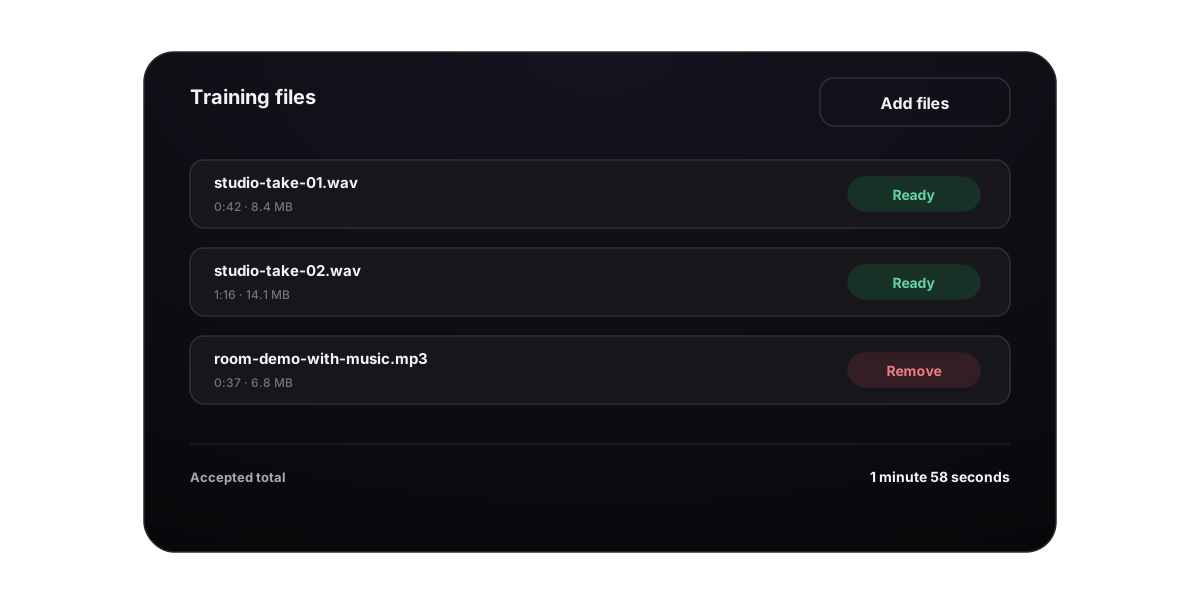
Prepare a consistent dataset
The dataset should teach one clear vocal identity rather than several recording styles at once.
| Keep | Remove or record again |
|---|---|
| One speaker or singer throughout | Multiple speakers or overlapping dialogue |
| Dry, close recordings | Backing music, obvious room echo, or delay |
| Natural phrases with varied vowels and consonants | One word repeated many times or long silence |
| Stable microphone distance and level | Clipping, sudden volume jumps, or a distant microphone |
| Similar language, accent, and register to intended use | Extreme pitch effects, heavy tuning, or voice conversion |
| Clean beginnings and endings | Cut-off words, clicks, or unrelated sounds |
Multiple clips are useful when they add natural variety. They are not useful when they mix different people, microphones, rooms, or heavily processed takes.
A practical starter dataset
For a first model, collect several short recordings from the same session:
- a calm verse or speaking passage;
- a stronger passage with clear consonants;
- sustained vowels or sung notes;
- natural transitions between low and high register.
Listen to every file before uploading. If one clip sounds noticeably noisier, more reverberant, or like a different person, leave it out of the first dataset.
Meet the file and duration requirements
| Requirement | Current limit |
|---|---|
| Total accepted duration | 1 to 60 minutes |
| Individual file size | Up to 50 MB |
| Combined dataset size | Up to 500 MB |
| Files | One or more audio files |
| Supported audio | MP3, WAV, M4A/MP4 audio, WEBM, FLAC, OGG, or AAC |
The page checks the file type, each file size, combined size, and recording length. After validation, the browser automatically bundles the selected clips and sends them for training. You do not need to prepare an archive yourself.
A correct filename extension does not prove that the audio can be opened. If the page cannot read its length or format, play the file on your device and export it again in a listed format.
Name and upload the model
- Enter a recognizable Model name. Keep it between 2 and 64 characters and use letters, numbers, spaces,
_, or-. - Select Upload voice clips and choose all files for this dataset together.
- Wait until the card shows the number of voice clips, total size, and filenames.
- Remove the dataset when any file is wrong, then choose the corrected set again.
- Confirm that the combined duration is between 60 seconds and 60 minutes.
Use a name that separates the voice from the dataset version, for example:
Studio_Vocal_Clean_01
Do not use a person's name as a substitute for recording permission. The name is only an internal label in My voices.
Start background training
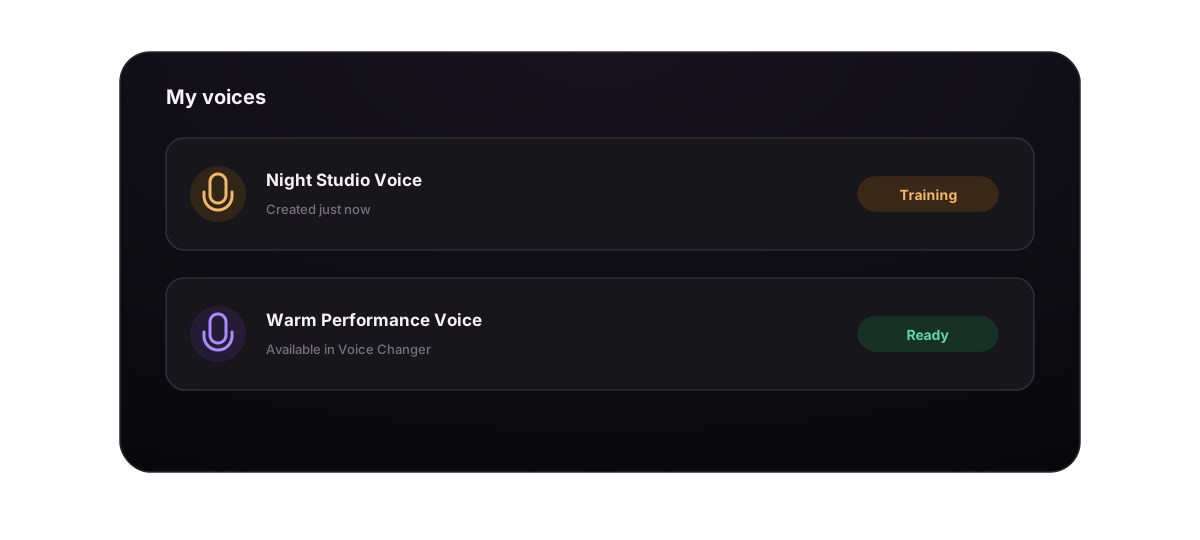
- Review the model name and selected clips.
- Select Start background training once.
- The page validates duration, packages the files, and uploads the temporary dataset.
- The training task starts and appears under My voices.
- Close the dialog and continue working or return later.
Training currently costs 10 credits. The cost is separate from the 5 credits used when you later run Voice Changer with the finished model. If training cannot be submitted or ends in a recorded failure, the task follows the product's automatic refund handling.
Understand the model status
| What you see | Meaning | What to do |
|---|---|---|
| training or processing | The dataset is still being trained | Wait; do not upload the same set again |
| ready / Yours | The model file is available | Select it and run a short conversion test |
| The row is visible but disabled | Training is not ready or the model file is missing | Return later and check again |
| A failed-training notice | One or more failed records are hidden from the normal picker | Improve the dataset before starting a new training task |
The newly submitted model is placed under My voices, but it cannot be used until its status is ready. Refreshing the page or changing tabs does not accelerate training.
Test the model before a long conversion
When the model becomes ready:
- select it under Voice Changer → Train voice → My voices;
- choose a short, clean source song or vocal;
- confirm the displayed 5-credit Voice Changer cost;
- generate one result;
- compare source and output from beginning to end.
Check consonants, vowels, long notes, register changes, pronunciation, breaths, and sections with louder backing music. One short controlled test tells you more than several long conversions with unrelated sources.
Decide whether to retrain
Retrain when problems are consistent across several clean source clips—for example, the identity never stabilizes, the same vowels always fail, or the model repeatedly changes character between registers.
Do not retrain only because one dense chorus has artifacts. First test a cleaner source; the mix may be the limiting factor rather than the model.
Fix common training problems
| Problem | What to try |
|---|---|
| Start background training is disabled | Select a valid dataset; the button does not require a typed name when a usable filename can provide one |
| “Please upload audio files only” | Remove archives, video-only files, and unsupported formats from the selection |
| An individual file is too large | Export or split that clip so it is 50 MB or less |
| The combined set is too large | Keep the total under 500 MB or remove redundant clips |
| Duration is outside the allowed range | Keep the accepted total between 1 and 60 minutes |
| Audio duration cannot be read | Re-export the affected clip to WAV, MP3, M4A, or FLAC and select the set again |
| Model name is rejected | Use 2–64 letters, numbers, spaces, underscores, or hyphens |
| Model remains disabled | It is still training; wait until it shows ready |
| A failed record is hidden | Prepare a cleaner, consistent dataset and start one new task |
| Model sounds noisy or reverberant | Remove processed clips and retrain from dry recordings |
| Identity changes through the result | Use one speaker, similar recording conditions, and broader natural phrase coverage |
Only train a voice that belongs to you or that you are authorized to model. Consent applies to the dataset and to how the resulting model is used.
Next, use the ready model in Voice Changer, or learn when a Voice Reference is the better workflow for new-song generation.
