Speech-to-Text & Text-to-Speech
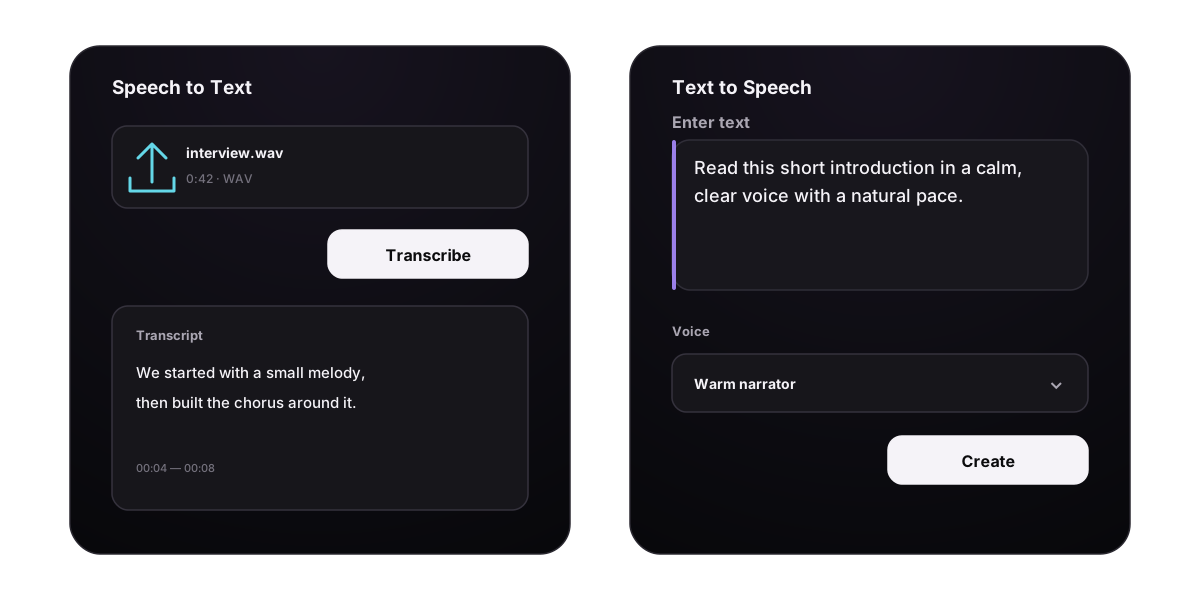
Speech to Text and Text to Speech use the same create, result, and history pattern, but they solve opposite tasks:
- Speech to Text starts with a recording and produces a transcript.
- Text to Speech starts with a script and produces spoken audio.
Choose the first when you need searchable, reusable words from audio. Choose the second when written material needs a voiceover, narration draft, character line, lesson, product demo, or spoken prototype.
Choose the correct direction
| Starting material | Goal | Tool | Result |
|---|---|---|---|
| Meeting, interview, podcast, voice note, or song | Read, search, quote, or caption the speech | Speech to Text | Full transcript, timestamped segments, and TXT download |
| Script, narration, dialogue, announcement, or lesson | Hear and export a spoken performance | Text to Speech | Playable and downloadable audio |
The transcript or generated speech is saved as a separate history item. The source song or recording is not replaced.
Speech to Text
Create a transcript
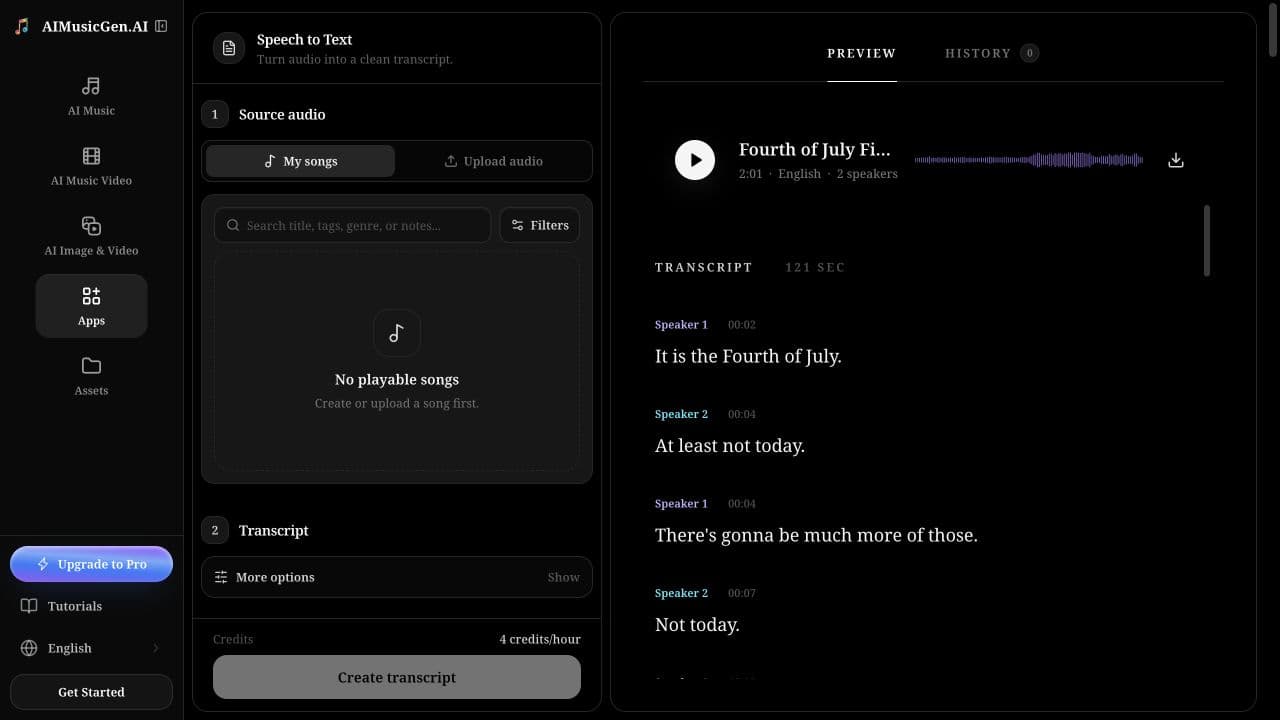
- Open Speech to Text.
- Choose My songs or Upload audio.
- Select a completed playable song, or upload a supported audio file under 50 MB.
- Preview the source and confirm that it is the intended recording.
- Open More options and choose the language, speaker, sound-note, channel, and timestamp settings.
- Review the duration-based credit estimate.
- Select Create transcript.
- When processing finishes, review both Full transcript and Timestamped segments.
- Select Copy or Download TXT after correcting the text in your working document.
The upload field accepts common audio formats shown in the interface, including MP3, WAV, M4A, FLAC, OGG, and WEBM. A file with a supported extension can still fail if it is empty, corrupted, larger than 50 MB, or encoded as non-audio content.
Prepare audio for a cleaner transcript
Transcription is most reliable when the words are easier to hear than everything around them.
| Better source | Harder source |
|---|---|
| Speakers close to a microphone | Distant room recording |
| Stable volume without clipping | Very quiet speech or distorted peaks |
| Limited overlap between speakers | Several people speaking at once |
| Low music and background noise | Loud music under dialogue |
| Complete recording with no missing sections | Abrupt cuts, dropouts, or long corrupted areas |
| Separate channels for isolated speakers | A multichannel file with mixed speakers on every channel |
Listen to the beginning, a middle section, and the ending before submitting. If speech is only on one side of a stereo recording or the wrong file was selected, fix the source first rather than relying on transcript settings.
Understand every transcript option
| Control | What it changes | When to use it |
|---|---|---|
| My songs | Uses a completed playable song from your library | Lyrics, spoken-word songs, podcasts, or audio already saved in the product |
| Upload audio | Uses a local audio file | Meetings, interviews, voice notes, lectures, and external recordings |
| Language | Auto-detects or specifies the spoken language | Set it manually when the recording is short, accented, noisy, or repeatedly detected incorrectly |
| Identify speakers | Adds speaker identities to conversational speech | One mixed recording containing two or more speakers |
| Number of speakers | Uses automatic count or a selected count from 2–6 | Set a known count when automatic speaker detection splits one person or merges different people |
| Include sound notes | Includes non-speech events such as audible reactions or music | Captions, interviews, accessibility review, and scene logging |
| Separate audio channels | Treats channels as separate sources | Calls or studio recordings where each speaker is isolated on a different channel |
| Timestamps | Chooses none, word-level, or character-level timing | Select only the timing detail required by the next workflow |
Identify speakers or separate channels
These two settings cannot be active together.
- Use Identify speakers when several people share one mixed microphone or mono/stereo mix.
- Use Separate audio channels when the recording already places each participant on a different channel.
- Use neither for a clean single-speaker recording when speaker labels are unnecessary.
If you turn on one option, the interface turns the other off. Speaker count is only available while Identify speakers is enabled.
Choose the timestamp detail
| Setting | Result | Good choice for |
|---|---|---|
| None | Plain transcript without detailed timing | Notes, summaries, search, and article drafts |
| Word | Each recognized word carries timing data | Caption preparation, quote location, and audio review |
| Character | Timing for individual characters | Specialized alignment workflows that truly need it |
Word timestamps are the practical default for most timed work. More detail does not make the words more accurate; it only makes each time marker more precise.
Use sensible option combinations
One-person voice note
- Language: auto-detect or choose the known language
- Identify speakers: off
- Include sound notes: off unless reactions matter
- Separate audio channels: off
- Timestamps: None for notes, Word for review
Two-person interview on one recorder
- Identify speakers: on
- Number of speakers: 2
- Include sound notes: on when laughter, applause, or music matters
- Separate audio channels: off
- Timestamps: Word
Remote call with one person per channel
- Identify speakers: off
- Separate audio channels: on
- Timestamps: Word
Song lyrics or spoken-word audio
- Choose the known language when possible
- Turn speaker identification off unless distinct performers must be separated
- Keep sound notes on if instrumental or non-speech cues are useful
- Use Word timestamps when locating lyrics in the audio
Understand credits and processing
Credits are estimated from the source duration. The current rate is 4 credits per hour, calculated from the recording length with a 1-credit minimum. The number beside the button is the final estimate for the selected source.
After submission, the result area shows a processing state while the recording is analyzed. Do not submit the same file repeatedly because the first view has not finished. If the request fails, the task follows the normal refund path.
Review and export the transcript
The completed result shows the source name, detected language, word count, speaker count, full transcript, and available timestamped segments. Use the audio and timestamps together when checking uncertain passages.
Before publishing, verify:
- names, product terms, acronyms, dates, numbers, and URLs;
- punctuation and paragraph boundaries;
- which speaker said each sentence;
- overlapping or interrupted speech;
- sound notes that are irrelevant, missing, or placed incorrectly;
- words near music, applause, laughter, or background noise;
- the beginning and ending, where clipped syllables are easy to miss.
Copy places the plain transcript on the clipboard. Download TXT creates a text file that includes available timestamped segments. Editing a downloaded copy does not update the saved history result.
Fix common transcription problems
| Problem | What to do |
|---|---|
| The wrong language was detected | Choose the spoken language manually and transcribe again |
| Two speakers were merged | Enable Identify speakers and set the known speaker count |
| One speaker was split into several labels | Set the correct speaker count or turn speaker identification off |
| Channel separation produces confusing output | Use it only when people are truly isolated by channel; otherwise use Identify speakers |
| Names or specialist terms are wrong | Correct them during review; use cleaner context around the term in the source when possible |
| Words are missing during overlap | Reduce overlap in the source edit or treat the result as a draft for manual correction |
| The transcript contains too many bracketed sounds | Turn off Include sound notes when non-speech events are not needed |
| The upload is rejected | Confirm it is audio, not empty, in a supported format, and under 50 MB |
| The estimate cannot be calculated immediately | Wait for the browser to read the upload duration before submitting |
Text to Speech
Create spoken audio
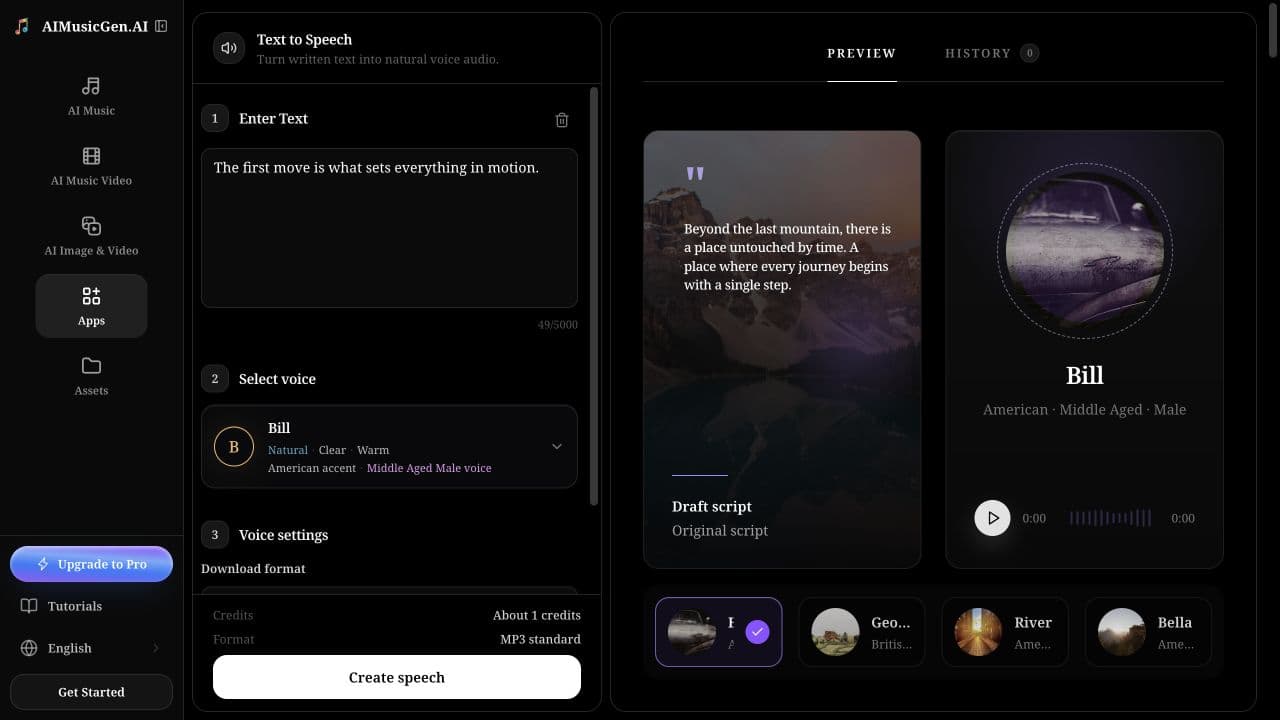
- Open Text to Speech.
- Enter or paste the script in Enter Text.
- Keep the text at or below 5,000 characters.
- Open Select voice, preview suitable voices, and choose one that fits the intended language and delivery.
- Choose a Download format.
- Open More options to adjust Speaking speed, Voice stability, and Enhance speaker clarity.
- Check the character-based credit estimate.
- Select Create speech.
- Play the complete result, then download it or revise the script and generate a new version.
The trash button clears only the current text field. It does not remove completed speech from History.
Choose the voice before fine-tuning settings
Voice choice has a larger effect than small slider changes. Preview several voices with your intended audience in mind:
- accent and language fit;
- perceived age and vocal character;
- calm, energetic, intimate, authoritative, or conversational tone;
- clarity on names and specialist vocabulary;
- suitability for narration, dialogue, product demos, or learning content.
A good voice for a calm documentary may not suit a fast interface demo. Preview samples help narrow the list, but generate a short line from your actual script before committing to a long section.
Format the script for speech
The engine reads the text you provide. Spelling, punctuation, capitalization, paragraph breaks, and context all influence the result.
Write for the ear
Written version:
Our platform supports rapid iteration, collaborative review, asset management, and export, enabling teams to move efficiently from an initial concept to a finished result.
Spoken version:
Start with an idea. Create a first version, review it with your team, and keep every asset in one place. When it is ready, export the final result.
Shorter sentences give the voice clearer breathing points and make mistakes easier to isolate.
Use punctuation to guide pacing
- Commas create short separations inside a sentence.
- Periods and paragraph breaks create stronger boundaries.
- Question marks help mark a question's intonation.
- An em dash can introduce a deliberate turn or interruption.
- Ellipses can suggest hesitation, so use them only when that delivery fits.
Do not fill a script with repeated punctuation. If a pause must be predictable, split the material into shorter generations and place the clips on a timeline.
Prepare names, numbers, and symbols
Unusual names, acronyms, URLs, emoji, and dense symbols can be read unpredictably. Write the spoken form when accuracy matters:
| Written for display | Safer spoken version |
|---|---|
2048 | two thousand forty-eight |
8:30 PM | eight thirty P M |
5 km | five kilometers |
A/B test | A B test |
| a difficult proper name | a clear phonetic respelling that sounds correct when read aloud |
Generate a short pronunciation test before using the term throughout a long script.
Add performance direction carefully
Supported bracketed cues can influence delivery, for example:
[whispering] We should keep this part quiet.
[excited] The final mix is ready!
Well... [sigh] let's try that one more time.
The selected voice still needs to suit the requested performance. Use a small number of cues, keep them close to the relevant line, and test them in a short passage. Do not put production notes in the text unless you want them interpreted as performance direction or possibly spoken.
Understand every speech control
| Control | Available setting | Effect |
|---|---|---|
| Voice | Available previewable voices | Changes the core speaker identity, accent, and character |
| Download format | MP3 standard, MP3 high quality, MP3 small file, or Opus high quality | Sets the audio encoding for the new result |
| Speaking speed | 0.70×–1.20× | Values below 1.00 slow delivery; values above 1.00 speed it up |
| Voice stability | 0–1 | Lower values allow more expressive variation; higher values favor consistency |
| Enhance speaker clarity | On or off | Asks for stronger speaker similarity and clarity; the audible change can be subtle |
Tune speed
Start at 1.00×. Lower the value for dense instructions or a deliberate narration. Raise it slightly for short announcements or energetic content. Extreme values can reduce naturalness, so edit the sentence length before pushing the slider to an endpoint.
Tune stability
Start from the default 0.50.
- Lower stability when the read is too flat and the script needs more emotional variation.
- Raise stability when pacing, tone, or pronunciation changes too much between sentences.
- If the voice becomes monotone, reduce stability slightly or choose a voice with a delivery closer to your goal.
- If the voice becomes chaotic, noisy, or inconsistent, raise stability and simplify performance cues.
The same text and settings can still produce small differences between generations. Save any take you want to keep before experimenting further.
Use speaker clarity
Keep Enhance speaker clarity on when preserving the selected voice identity is more important than the smallest possible processing time. Turn it off and compare when the result sounds strained or when you are testing whether the setting is responsible for an artifact. The difference may be subtle, so compare the same short sentence.
Choose the download format
| Format | Best for | Tradeoff |
|---|---|---|
| MP3 standard | General voiceovers and previews | Balanced size and quality |
| MP3 high quality | Final compressed delivery | Larger file |
| MP3 small file | Fast sharing and prototypes | More audible compression |
| Opus high quality | Modern apps and playback systems that support Opus | Confirm editor and platform compatibility |
Choose the format before generation. An existing history item keeps the format that was created at the time.
Understand text-to-speech credits
The current estimate uses the trimmed character count: 10 credits per 1,000 characters, calculated proportionally and rounded up, with a 1-credit minimum. The 5,000-character maximum would therefore display up to 50 credits. Check the live estimate after your final script edit.
For long material, generate a short test first. Once the voice, pronunciation, and settings are correct, split the script at natural paragraph or scene boundaries. This makes revisions smaller and avoids paying to recreate an entire long passage because of one line.
Review and refine the result
Listen with the script visible and check:
- every name, number, acronym, and technical term;
- pauses at commas, sentences, and paragraph breaks;
- changes in accent, volume, tone, or speed;
- unexpected breaths, clicks, noise, or extra speech;
- emotional cues and whether they fit the surrounding lines;
- silence at the beginning and ending;
- whether the voice still sounds clear under music or sound effects.
When one sentence fails, rewrite or generate that section separately. Keep the good take and assemble approved sections in AudioMass – Audio Editor or another timeline instead of repeatedly regenerating everything.
Fix common speech problems
| Problem | What to change |
|---|---|
| The voice is too flat | Choose a more suitable voice, lower stability slightly, and improve punctuation or performance cues |
| The delivery is too chaotic | Raise stability, remove excess cues, and shorten the passage |
| A name is mispronounced | Write a phonetic alternative and test it in one short sentence |
| Numbers or symbols sound wrong | Spell out the spoken form instead of using digits or symbols |
| The voice becomes too fast or slow mid-passage | Split long text, simplify punctuation, and move speed closer to 1.00× |
| The accent changes | Choose a voice suited to the script language and generate shorter sections |
| Extra noise or speech appears | Raise stability, remove conflicting cues, and retry a shorter passage |
| The Create button is disabled | Add non-empty text and keep it within 5,000 characters |
| A voice preview does not play | Try another preview, check browser audio permission, then select and run a short generation |
Use History without losing useful work
Each tool has its own History. Search by title or content, switch between newest and oldest order, open earlier results, copy or download them, load more items, and delete unwanted entries. Deleting a history item is different from clearing the current input field.
For sound design around a generated voice, continue with Generate Sound Effects. To edit, layer, and export completed audio, see Audio Editing, MIDI & Exports.
