Music Video Types, Music, Images & Lyrics
The Music Video creator combines one audio source with the image and lyric inputs required by a selected video type. Choose the type first: it changes the number of images, whether audio trimming is available, whether lyrics appear, and whether the workflow uses a preview before the final render.
Compare the four video types
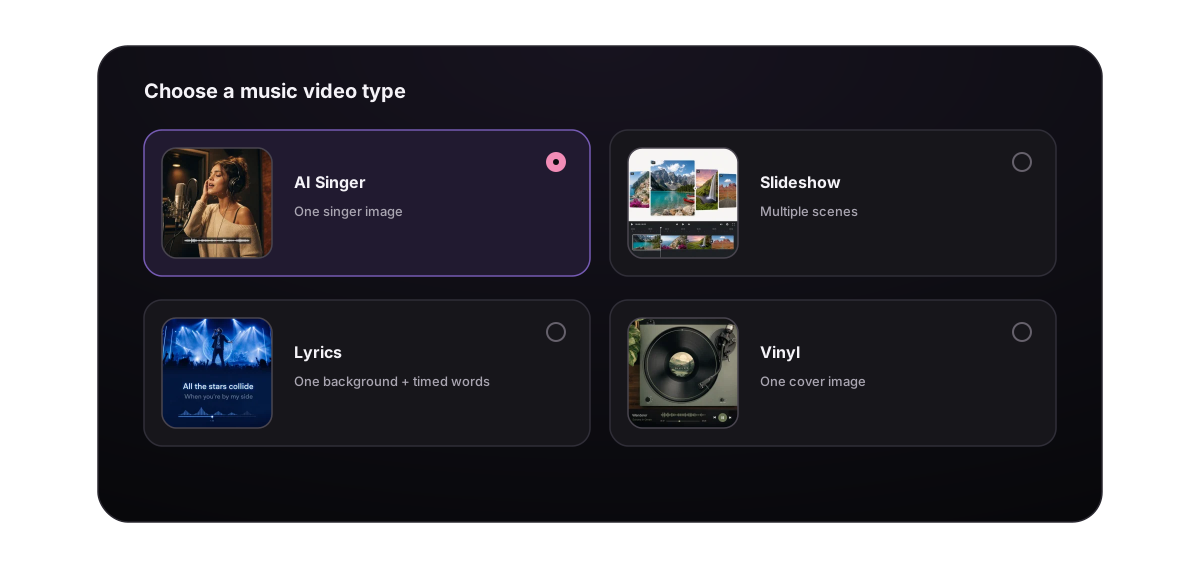
| Type | Images | Lyrics in the creator | Ratio and resolution | Creation path |
|---|---|---|---|---|
| AI Singer Video | One singer image | No lyrics editor | Ratio follows the image/crop; 480p or 720p | Confirm and generate the final task directly |
| Slideshow Video | Multiple scenes, up to 30 | Optional timed lyrics | 16:9 or 9:16 | Supports saved drafts; otherwise creates a free preview before render |
| Lyrics Video | One background image | Timed lyrics | 16:9 or 9:16 | Free preview, then confirm render |
| Vinyl Video | One cover image | Timed lyrics can be prepared in the creator | 16:9 or 9:16 | Free preview, then confirm render |
Choose AI Singer when
You have a vocal track and a single clear singer image. The mouth and face should be visible; a front-facing or slight three-quarter portrait is easier to frame than a distant full-scene image. AI Singer is also the only type with Full song / Audio segment trimming and 480p / 720p output choices.
Choose Slideshow when
The music needs several scenes, a visual progression, or a changing sequence across the track. You can upload your own images or build editable scene prompts and generate images for them. Slideshow is the only type with a persistent Draft workflow.
Choose Lyrics Video when
Timed words should be the main visual focus. Use one background with enough quiet, high-contrast space for readable lyrics, then inspect the SRT timing in Preview before spending credits on the final render.
Choose Vinyl when
One cover image and a vinyl-style presentation are enough. It is useful when the artwork and music should remain central without a multi-scene story.
Step 1: Choose the music source
Select exactly one source:
- My songs lists your completed songs that have playable audio.
- Upload audio accepts a local track up to 50 MB and 10 minutes.
The upload validator supports MP3, WAV, M4A, FLAC, OGG, AAC, and WebM. The compact label in the current picker lists MP3, WAV, M4A, FLAC, and WEBM. The browser must be able to read the file duration; an unreadable, empty, corrupted, oversized, or overlength file cannot be used.
Preview the selected source before preparing images. Replacing the music later can change the duration, lyrics, scene needs, and render cost.
Trim audio only in AI Singer
AI Singer exposes Full song and Audio segment.
- Choose Audio segment.
- Drag or enter the intended start and end.
- Keep at least 1 second selected.
- Play the range and check the entrance and ending.
The selected range is exported as a new WAV source and billed by its trimmed duration. It does not modify the original library song. Slideshow, Lyrics, and Vinyl do not currently show this trim control, so prepare an external edit before uploading if those types need a shorter track.
Step 2: Choose the image source
Image uploads accept JPG, PNG, and WebP up to 30 MB per file.
Single-image types
AI Singer, Lyrics, and Vinyl use one image. When a library song already has a cover and no other image is selected, that cover can be used automatically. You can instead upload an image or choose Generate to open the image generator.
When generating a single image:
- Edit the prompt.
- Choose an available image model and its visible resolution/format options.
- Optional: add references allowed by that model.
- Generate and wait for a result.
- Select Use this singer, Use this background, or Use this cover to return it to Music Video.
The generated image is charged according to the selected image model and resolution. It is not part of Slideshow's fixed 2-credits-per-scene pricing.
AI Singer additionally offers crop on the default cover, uploaded image, or generated singer image. The crop is centered and can output 16:9 or 9:16; the video ratio follows the crop. The other three types do not provide this same crop workflow, and Slideshow does not have per-image crop controls.
Slideshow images
Slideshow can use uploaded images, generated scene images, or both, with up to 30 images in the active project. Arrange a sequence that develops rather than repeating the same framing.
The deliberate AI scene workflow has two separate stages:
- Open Generate scenes and provide a visual direction, or use the available song/lyrics context.
- Choose Generate scene prompts. This prompt-planning step is free.
- Review every Scene Prompt. Edit or delete weak prompts and use Add scene when a beat is missing.
- Choose Generate scene images only after the prompt list is ready.
- Scene images cost 2 credits per valid prompt. The dialog closes after submission and image progress continues in the image strip.
With timed lyrics, the current maximum is 30 generated scenes. Without lyrics, the system targets up to 25. Starting the main Music Video action with an empty AI-image list can also prepare preview images automatically; use the two-stage scene dialog when you want to inspect and edit the prompt plan before paying for images.
Step 3: Prepare timed lyrics
The lyrics section appears after audio is available in Slideshow, Lyrics, and Vinyl. It does not appear in the standard AI Singer flow.
Using a library song
The creator can request synchronized lyrics for a compatible completed song. The first uncached retrieval costs 1 credit; a cached result costs 0. If synchronized lyrics cannot be prepared—for example, the source is instrumental—the supported failure path refunds that retrieval charge.
Do not assume every song is guaranteed to have timed lyrics. Review the returned text and timing before previewing.
Using uploaded audio
Uploaded audio does not automatically produce synchronized lyrics. Open the editor and enter or paste SRT manually.
1
00:00:00 --> 00:00:03
First lyric line

2
00:00:03 --> 00:00:06
Second lyric line
Each cue needs an index, a start and end time, and the text to display. Keep cues in chronological order, avoid overlaps, and give the audience enough time to read each line.
Review lyrics before images and render
Check:
- spelling, punctuation, names, and repeated choruses;
- whether each cue starts with the sung phrase rather than noticeably before or after it;
- long lines that need shorter wording or separate cues;
- gaps during intros, solos, and outros;
- whether the chosen image leaves readable space for text;
- whether Slideshow scene prompts follow the meaning and progression of the lyrics.
Complete each type
AI Singer
- Select a song or upload audio.
- Keep the full song or choose an audio segment.
- Select, upload, or generate one clear singer image.
- Crop it to 16:9 or 9:16 if needed.
- Choose 480p or 720p.
- Review the displayed duration-based credits.
- Choose the main generation action and confirm the final task.
Slideshow
- Select a song or upload audio.
- Choose 16:9 or 9:16.
- Upload images or create and review scene prompts before generating scene images.
- Fetch or edit timed lyrics when they are useful.
- Check the image order and active Draft.
- Continue through the Preview or Draft-to-render path shown by the creator.
Lyrics Video
- Select a song or upload audio.
- Choose 16:9 or 9:16.
- Select, upload, or generate one quiet background image.
- Fetch or manually enter valid timed lyrics.
- Create the free Preview and check readability and timing.
- Confirm the final render.
Vinyl
- Select a song or upload audio.
- Choose 16:9 or 9:16.
- Select, upload, or generate one cover image.
- Prepare and review timed lyrics when used by the selected setup.
- Create the free Preview.
- Confirm the final render.
For the exact state transitions, costs, download rules, and Slideshow Draft exception, continue with Draft, Preview, Render & Export a Music Video.
