Draft, Preview, Render & Export a Music Video
Music Video uses different preparation paths for AI Singer, a fresh template project, and an existing Slideshow Draft. Understanding those paths prevents duplicate paid renders and makes it clear when a Preview is only an interactive browser view rather than a downloadable file.
Know which path your project follows
| Starting point | What happens next | When credits are charged |
|---|---|---|
| Fresh Slideshow, Lyrics, or Vinyl form | Create a free browser Preview → inspect → Confirm render | 20 credits when final render starts |
| Existing saved Slideshow Draft | Continue to restore inputs → main action can start final render directly | 20 credits when final render starts |
| AI Singer form | Review confirmation → submit final AI Singer task directly | Duration-based credits when generation starts |
Preview itself costs 0 credits. It is not a finished MP4 and cannot be downloaded.
What a Slideshow Draft saves
Persistent Draft currently belongs only to Slideshow. A Draft can be created or updated after valid multi-image uploads, when an AI scene-image task starts, and when generated images return.
It preserves the working material required to continue, including:
- music source and audio details;
- selected ratio and resolution data used by the project;
- uploaded and generated images;
- visual prompt and editable scene prompts;
- timed lyrics;
- scene-image task ID and generation status.
In History, a Draft shows Continue. Continuing restores its inputs to the creator and resumes scene-image status updates if that work is still running.
AI Singer, Lyrics, and Vinyl do not currently have an equivalent persistent Draft record. Do not rely on navigating away and returning to restore an unfinished form for those types.
Create and inspect a free Preview
From a fresh Slideshow, Lyrics, or Vinyl form, the main action creates a Preview record without charging render credits. The Preview runs in the browser player and can use the full audio, images, lyrics, ratio, and current animation configuration.
Before selecting Confirm render, play several checkpoints:
- the opening, to verify the first image and audio start;
- a transition or middle section, to check scene order and pacing;
- a verse or chorus, to inspect lyric timing and contrast;
- the ending, to catch an abrupt cutoff or final frame problem.
Preview is the place to return to the inputs and fix source choices. It is not a low-resolution exported file.
An existing Slideshow Draft is the exception: its main action can submit the Draft directly to final render instead of first creating a separate Preview. Check the confirmation and current History state rather than assuming every Slideshow must pass through both records.
AI Singer is the other exception: it has no free browser Preview stage. The confirmation submits the final task.
Final render costs
| Work | Cost |
|---|---|
| Browser Preview for Slideshow, Lyrics, or Vinyl | 0 credits |
| Slideshow Scene Prompt generation | 0 credits |
| Slideshow Scene Image generation | 2 credits per valid scene prompt |
| First uncached synchronized-lyrics retrieval | 1 credit |
| Final Slideshow, Lyrics, or Vinyl render | 20 credits |
| AI Singer 480p | 4 credits per second |
| AI Singer 720p | 8 credits per second |
AI Singer duration is rounded up to the next whole second. A 12-second selection costs 48 credits at 480p or 96 credits at 720p; a 12.1-second selection is billed as 13 seconds. Trimming the source changes the billed duration; switching 480p to 720p doubles the per-second rate.
The maximum accepted audio duration for rendering is 600 seconds. The visible estimate near the action is the number to review before submission.
For template videos—Slideshow, Lyrics, and Vinyl—the final output uses the chosen ratio:
- 16:9 renders at 1920 × 1080.
- 9:16 renders at 1080 × 1920.
- The final file is H.264 MP4.
480p and 720p are AI Singer choices, not general resolution controls for all four types.
Understand History states and actions
History can be filtered by Slideshow, Lyrics, Vinyl, AI Singer, or All, and older records can be loaded.
| Visible state | Meaning | Available next step |
|---|---|---|
| Draft | Saved Slideshow work is unfinished | Continue and review the restored inputs |
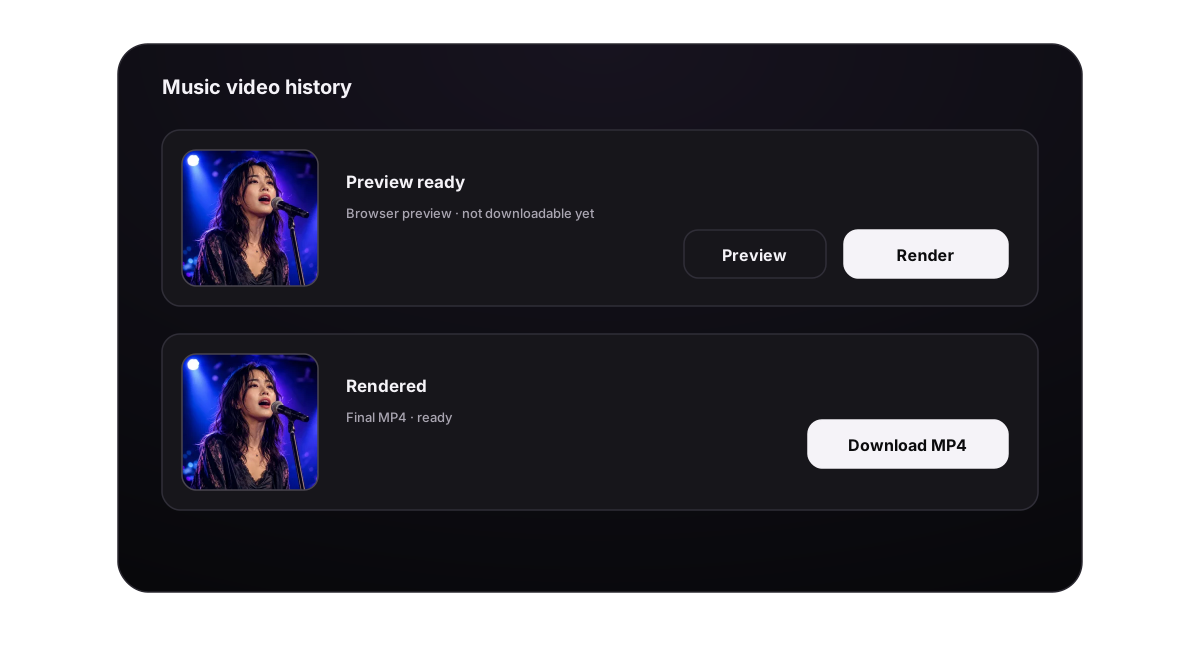
| Preview ready | A free browser Preview can be inspected | Preview or Render |
| Rendering | The final task is pending or processing | Wait for status updates; do not submit a duplicate |
| Rendered | A final video URL is ready | Preview and Download |
| Error | The task failed or was canceled | Read the failure, correct the source, then start a new task; deletion is available |
Pending and processing final tasks update automatically. Draft and Preview records are not treated as background renders.
Failed final renders follow the guarded refund path and show a credit-refund message. A normal Delete action does not refund a successful generation.
Download the completed MP4
Download appears only when the record is completed and has a final video URL.
- Open the completed result or locate it in History.
- Play enough of the final file to confirm it is the expected version.
- Choose Download.
- Keep the MP4 in your own storage and rename it if the generated title is not useful.
The download endpoint verifies that the signed-in user owns the active record. If the task is not ready, no export is available. Generated video resources are periodically cleared, and the product does not promise an exact retention period, so download important results promptly.
Delete without assuming a recovery path
Delete in the Music Video creator is a soft delete that removes the item from active History. The current visible Music Video interface does not expose a Trash/Restore screen for these records, even though restoration exists in the data layer. Do not delete a result you still need and do not use the separate Visuals Trash guide as if it were a Music Video recovery path.
Download the final file before deleting the record or changing source assets.
A final pre-render checklist
- The intended song or upload is selected and playable.
- AI Singer uses the correct Full song or Audio segment range.
- The video type matches the number and role of selected images.
- The ratio matches the publishing destination.
- AI Singer framing keeps the face and mouth visible.
- Slideshow scenes are ordered and no image is stuck in starting/processing/failed state.
- SRT cues are chronological, readable, and synchronized.
- The Preview—when this path provides one—shows the latest images and lyrics.
- The displayed credit estimate matches the action you are about to take.
- You are not rendering an older Preview or Draft selected from History by mistake.
Recover from common problems
| Problem | What to do |
|---|---|
| Continue opens an unexpected setup | Confirm that the selected History item is the intended Slideshow Draft |
| Preview has no Download button | This is expected; Preview is a free interactive check, not an exported MP4 |
| AI Singer skips Preview | This is the current workflow; confirmation starts the final task directly |
| A saved Slideshow goes straight to render | A persistent Draft can render directly instead of creating another Preview |
| Lyrics are early or late | Return to the SRT editor, correct cue times, and create a new Preview |
| One Slideshow image is missing | Wait for its scene-image task or replace/upload an image before rendering |
| The final action is unavailable | Check audio duration, required images, valid lyrics for the chosen type, and credit balance |
| Download is unavailable | Wait until the record is completed and has a final video URL |
| A render fails | Read the visible error, keep or restore the source inputs where possible, and submit a corrected new task |
To prepare the inputs again, return to Music Video Types, Music, Images & Lyrics. For general file sharing and visibility, see Visibility, Sharing & Downloads.
