Create Images & Cover Art
Use Visuals to generate a new image from a prompt or to make a new image with one or more reference images. A finished image can be downloaded, organized in a Visual Workspace, applied directly to a completed song, or selected later from an album cover dialog.
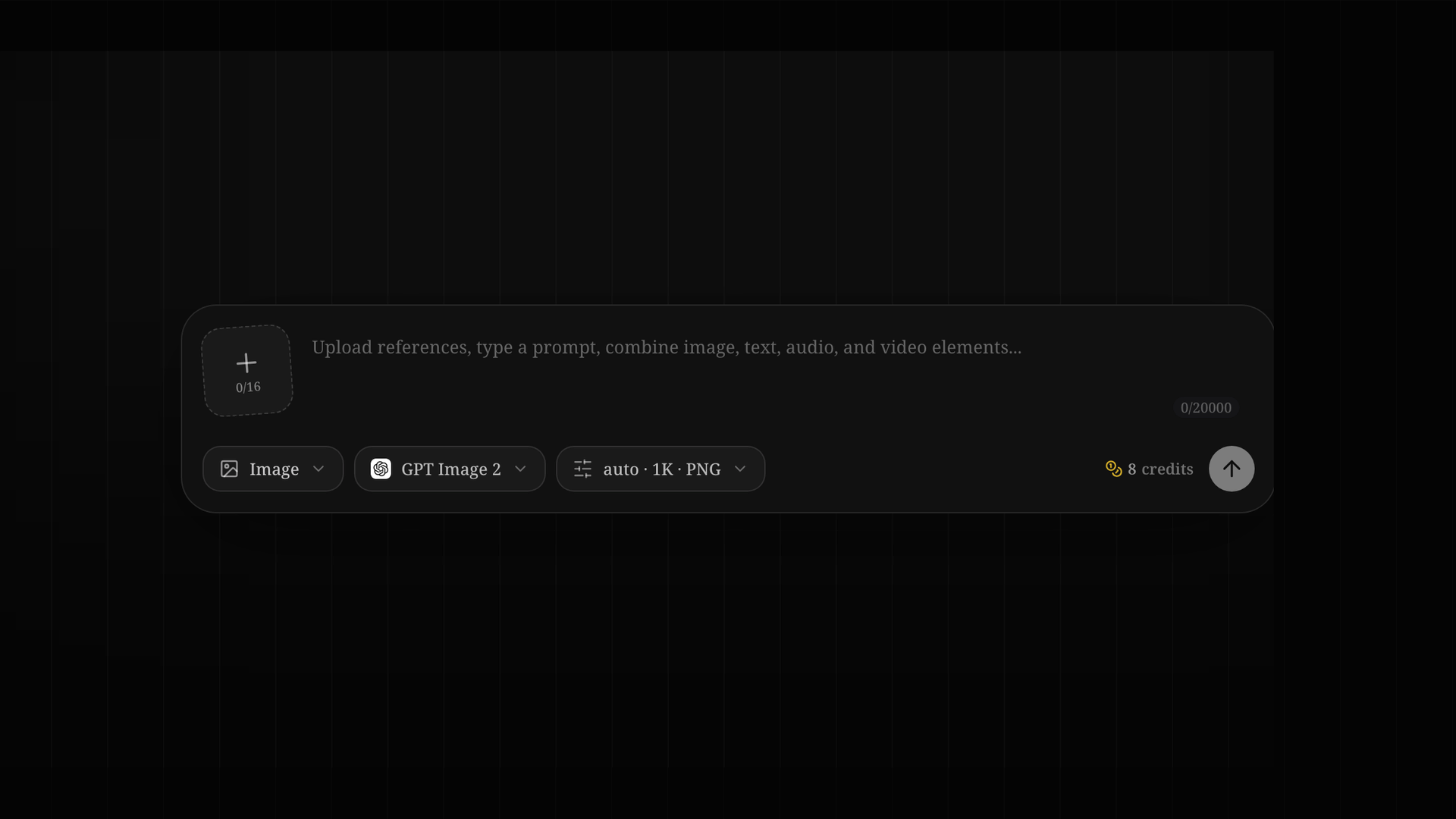
Create an image
- Open Visuals.
- In the composer, choose Image. The page remembers some previous settings, so confirm the mode instead of assuming it changed automatically.
- Write a non-empty prompt describing the result you want.
- Choose an image model.
- Optional: add reference images and check that every intended thumbnail is visible.
- Open Format and choose the available aspect ratio, resolution, and output format.
- Review the credit number beside Generate, then submit.
- Follow the new Processing card in History until it completes.
The prompt, references, and format work together. The format control defines the canvas; the prompt describes what should appear inside it; references become additional image inputs for the selected model.
Choose the destination before writing the prompt
| Destination | Start with | Composition advice |
|---|---|---|
| Song or album cover | 1:1 | Keep the main subject readable at thumbnail size and leave intentional space if typography will be added elsewhere |
| Landscape video background | 16:9 | Decide where a performer, title, or lyrics may need negative space |
| Portrait social artwork | 9:16 | Keep important details away from the extreme top and bottom edges |
| General landscape artwork | 4:3, 3:2, or another visible landscape ratio | Describe foreground, subject distance, and horizon placement |
| General portrait artwork | 3:4, 2:3, or another visible portrait ratio | Describe whether the result is a close-up, half-body, or full-height composition |
Words such as “square” or “vertical” in a prompt do not replace the ratio control. Choose the shape in Format and use the prompt to direct the composition within that shape.
Write a prompt the model can stage
A useful prompt usually contains these parts:
- Subject: the main person, object, character, or place.
- Scene: the surrounding location, weather, time, or context.
- Composition: camera distance, angle, subject position, foreground, background, and negative space.
- Lighting: soft window light, hard flash, sunset rim light, neon spill, or another clear direction.
- Color: a restrained palette or a specific contrast.
- Finish: photography, collage, ink illustration, 3D render, editorial artwork, or another visual treatment.
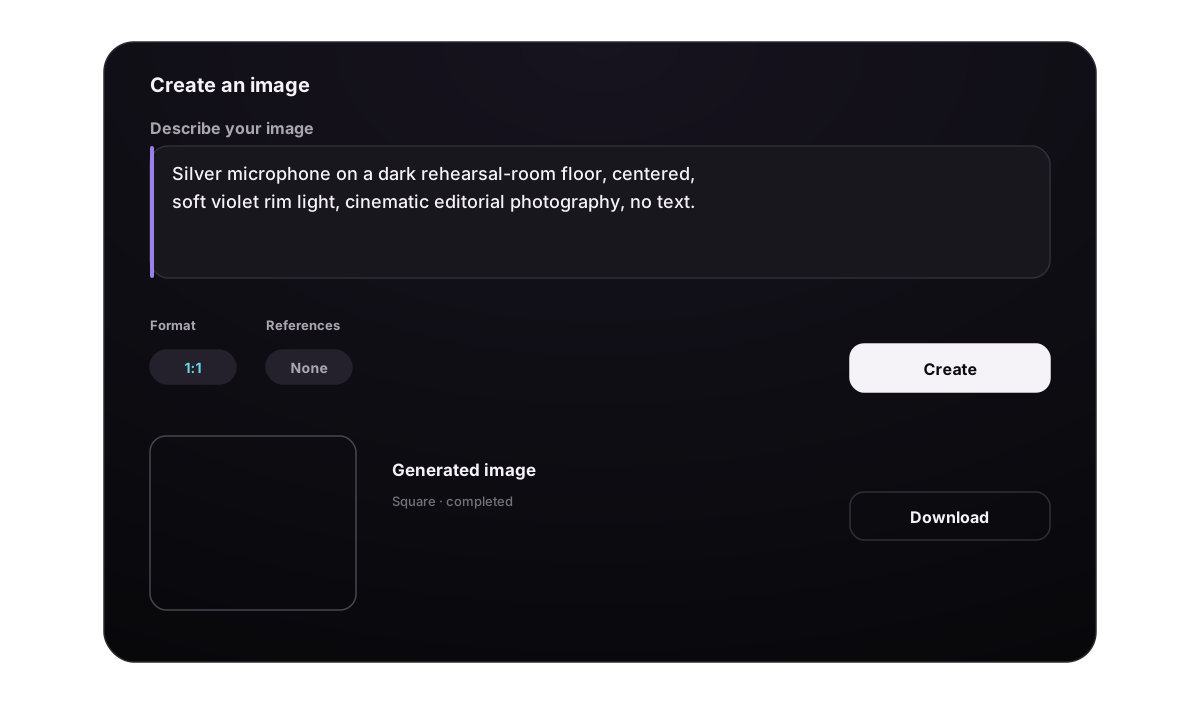
Square cover example
Solitary silver microphone on a dark rehearsal-room floor, centered composition, viewed from slightly above, soft violet rim light, subtle dust in the air, charcoal and muted purple palette, cinematic editorial photography, no text, no logo.
Landscape background example
Wide desert road after rain at blue hour, low horizon, distant headlights, reflective asphalt, cool cyan and warm amber palette, generous quiet space in the upper-right, cinematic still.
Portrait artwork example
Full-height silhouette of a singer behind translucent fabric, narrow spotlight from above, deep charcoal background, restrained magenta highlights, fashion editorial photography.
If the first result is too busy, remove secondary subjects before adding more style words. If the placement is wrong, specify camera distance, subject position, and negative space rather than only saying “better composition.”
Understand the current image models
The menu is the live source of truth, but the current controls and costs are:
| Model | Prompt limit | References | Resolution | Output format | Credits |
|---|---|---|---|---|---|
| GPT Image 2 | 20,000 characters | Up to 16 | 1K, 2K, 4K | No format selector | 8 / 15 / 25 |
| Nano Banana 2 | 20,000 characters | Up to 14 | 1K, 2K, 4K | PNG or JPG | 10 / 15 / 25 |
| Nano Banana Pro | 10,000 characters | Up to 8 | 1K, 2K, 4K | PNG or JPG | 20 / 25 / 30 |
| Nano Banana | 5,000 characters | Up to 10 | No resolution selector | PNG or JPG | 8 |
The three credit values correspond to 1K, 2K, and 4K. Nano Banana uses a fixed 8-credit setting and does not expose a resolution control.
Available aspect ratios also depend on the model:
- GPT Image 2: Auto, 1:1, 16:9, 9:16, 4:3, and 3:4.
- Nano Banana 2: Auto, common square/portrait/landscape ratios, plus 1:4, 4:1, 1:8, and 8:1.
- Nano Banana Pro and Nano Banana: Auto and the common ratios from 1:1 through 21:9 shown in the menu.
For GPT Image 2, Auto can only be used at 1K, and 1:1 cannot be combined with 4K. The interface blocks these unsupported combinations. If you change models, reopen Format and verify that the visible selection still matches the destination.
Use reference images safely
References are optional. Without one, the task is generated from text. With references, the files are sent as additional image inputs to the selected model.
- Accepted types: JPEG, PNG, GIF, and WebP.
- Maximum size: 30 MB per image.
- Maximum count: the limit shown for the selected model.
- You can select or drag several files, inspect the thumbnails, and remove individual references before submission.
Reference adherence varies by model and request. Do not assume that a reference will perfectly lock identity, pose, palette, or composition. State the important relationship in the prompt and keep only references that contribute to the intended result.
Uploads are processed one by one. If one file fails, other valid files can still remain in the request. Before selecting Generate, confirm the visible count and thumbnails; re-add any missing file rather than assuming it was included.
Follow processing and manage results
After the task is accepted, History immediately shows a Processing card. The composer becomes available again, so another task can be submitted while the first one runs. Each submission is a separate credit-bearing task—do not submit an identical prompt simply because the first card has not finished.
A completed image supports the actions currently shown on its card:
- open a larger preview;
- expand or collapse and copy the prompt;
- download the image;
- add or edit a private note of up to 1,000 characters;
- favorite or unfavorite it;
- move it to another Visual Workspace;
- move it to Trash;
- apply it to a completed song with Use as song cover.
History can search prompt and note text, filter by recent time range, show only Images or Favorites, and load older results. It does not currently restore the full prompt and settings to the composer, and the main result card does not include crop, edit, share, or regenerate actions.
Moving an image to Trash removes it from active History. The confirmation states that it can be restored for 7 days; use Library → Trash → Images when restoration is needed.
Apply an image as cover art
Song cover
- Open the menu on a completed image card.
- Choose Use as song cover.
- Select one of your completed songs.
- Choose Set as cover.
The image is copied to a song-specific cover location and the selected song is updated. This action does not have a separate credit charge.
Album cover
The Visuals result card does not contain a direct album action.
- Open the album and its cover dialog.
- Choose Choose from Visuals.
- Select a completed image.
- Choose Use selected image.
There is no crop control in either cover flow. Generate the image at 1:1 with the intended framing before applying it. Direct cover uploads are a separate path with a 2 MB limit; that limit is different from the 30 MB reference-image limit.
Fix common problems
| Problem | What to check |
|---|---|
| Generate is unavailable | Enter a non-empty prompt and wait for any reference upload still in progress |
| A reference is missing | Use JPEG, PNG, GIF, or WebP under 30 MB and confirm its thumbnail before submitting |
| GPT Image 2 rejects the format | Use Auto with 1K, or avoid the 1:1 + 4K combination |
| The result has the wrong crop | Generate again at the destination ratio; the cover flow has no crop tool |
| The composition feels crowded | Reduce subject count and specify one focal point, camera distance, and negative-space area |
| The result follows an unwanted source detail | Remove the unrelated reference and state only the required relationship in the prompt |
| Credits are insufficient | Add credits, then submit the task again |
| A task fails or times out | The supported failure paths return the generation credits; copy the prompt, correct inputs, and submit a new task |
| History does not load | Use Try again and keep the composer inputs until the list returns |
For motion created from text or images, continue with Create AI Videos. For organizing finished visuals, see Organize Songs & Visuals.
