Trash, Restore & Previous Assets
Choose Move to trash from a song's More actions menu. This is a soft delete: the song leaves normal lists and can be restored from Trash for 7 days.
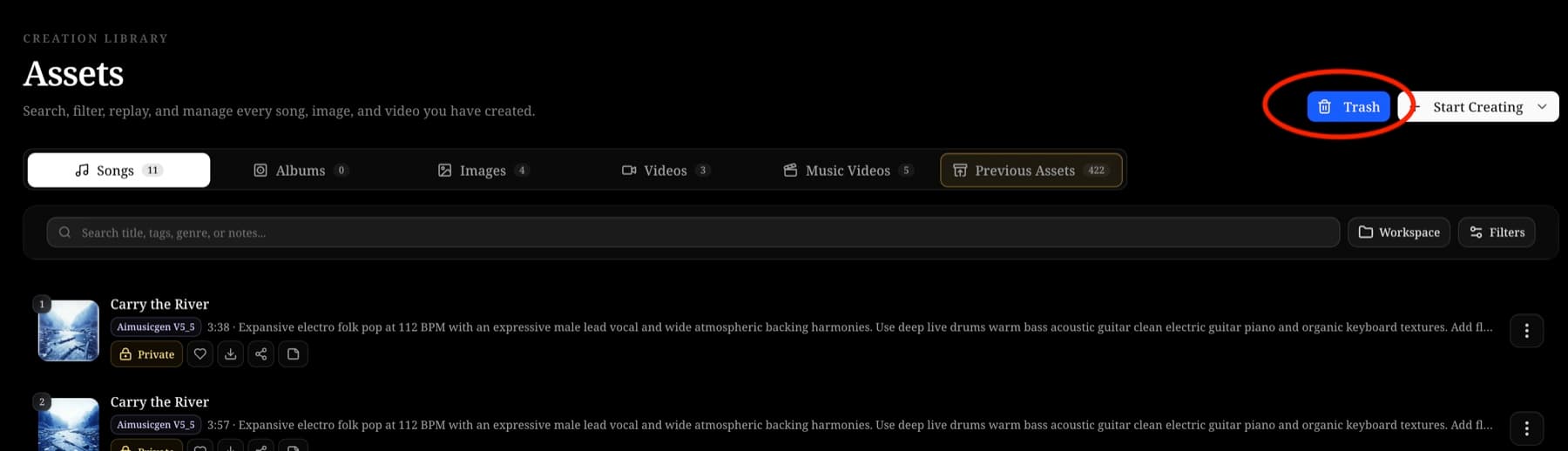
Open the trash button above the song list to review deleted content. The current Trash page has separate Songs, Images, and Videos tabs. Each eligible item has a Restore action; the page does not provide a permanent-delete action.
Previous Assets is separate from Trash. It lists creations owned by the same account in the earlier system and lets you migrate or remove them through a background job. Migration can take time; keep the original data until the job reports completion. Missing source files cause migration to fail rather than silently creating an incomplete current asset.
The workspace and album menus also use “Move to trash,” but the current Assets Trash page does not list or restore those containers. The default workspace cannot be removed. Removing a song from an album only removes membership—it does not delete the song.
Understand the different removal actions
| Action | What disappears | Can it return? |
|---|---|---|
| Remove from this album | Only the album membership | Yes, add the same song to the album again |
| Move song, image, or video to trash | Item leaves normal lists | Yes, from the matching Trash tab within 7 days |
| Move workspace to trash | Non-default workspace leaves the workspace picker | No restore control is currently shown in Assets Trash |
| Move album to trash | Album leaves the Albums list; its songs remain | No restore control is currently shown in Assets Trash |
| Remove Previous Asset | Earlier-system asset is processed by a background removal job | Follow that job's final state; it is not ordinary Song Trash |
Before confirming, read the item title and action label. Similar names are common when a generation returns multiple versions. Do not treat the word “trash” as a promise that every type of container has a visible restore screen.
Restore a song, image, or video
- Open the trash icon above the song list.
- Select Songs, Images, or Videos.
- Find the correct deleted item and preview its identifying information.
- Choose Restore while the item is still within the 7-day recovery window.
- Wait for the visible result before repeating the action.
Restored content can require you to select the relevant workspace or clear active filters before it becomes visible. Items older than the 7-day recovery window are not returned by the current Trash list and cannot be restored through this page.
Previous Assets migration
Previous Assets is for creations associated with the same account in the earlier system. Migration and removal run as jobs because source records and stored media must be checked. A processing job may continue after the dialog closes.
For migration, wait until the job reports completed before relying on the new copy. If a required source file cannot be found, the job fails and keeps the earlier record instead of inventing an incomplete asset. Search the current Songs or Music Videos list after completion and refresh the summary if necessary.
Download anything you must retain and verify migration results before removing an earlier-system source. Removing a Previous Asset is a separate background job and is not the same action as restoring a current song, image, or video from Trash.
