Choose a Creation Mode
Choose a starting point based on what you already have.
Which option should you use?
| What you have | Where to start |
|---|---|
| A song idea | Easy |
| Your own lyrics | Custom |
| An audio file | Custom → Audio |
| A finished song you want to change | Open More actions on that song |
| A saved song or voice Reference | Custom → Reference |
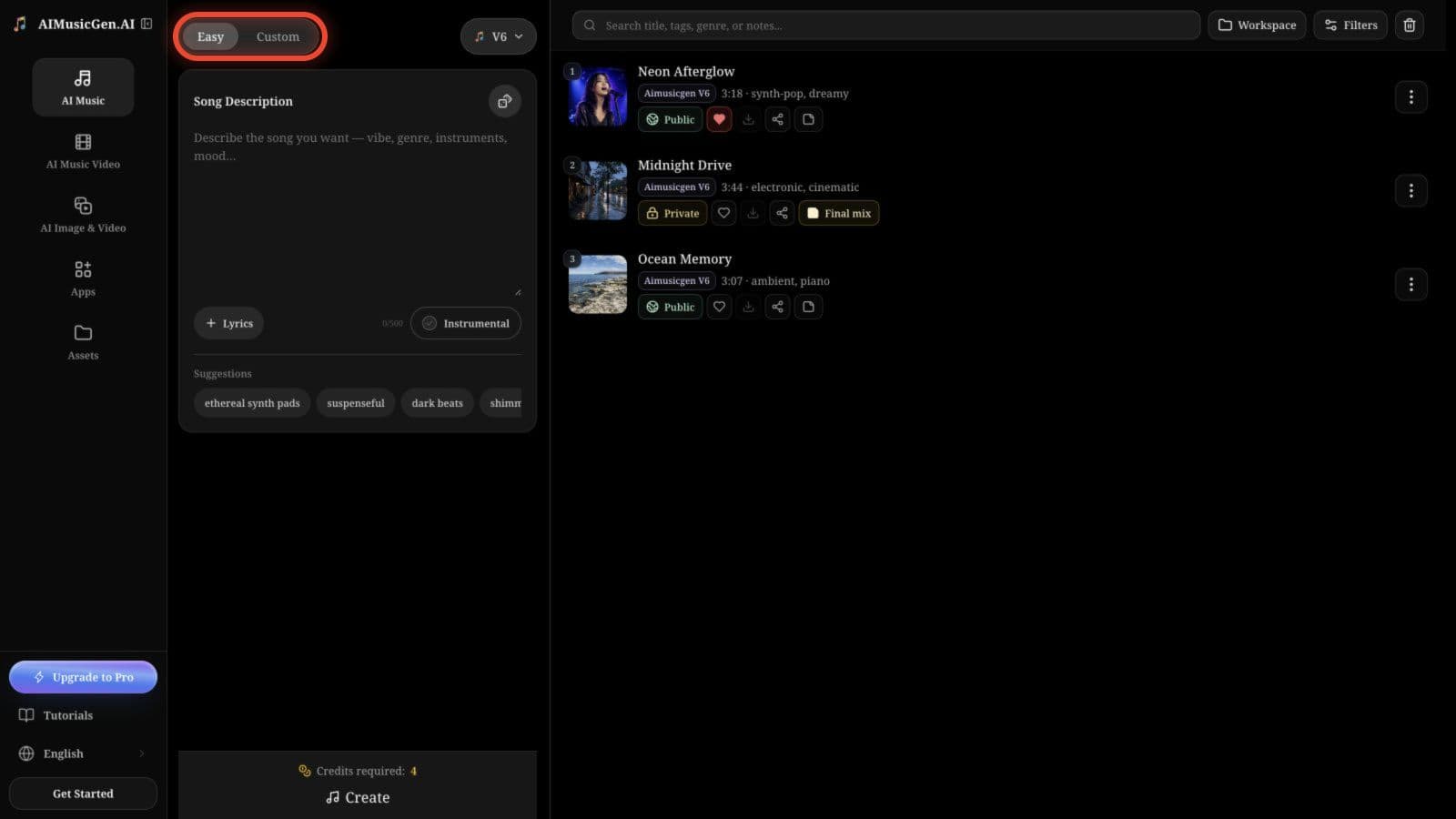
Easy
Choose Easy when you want the fastest start. Write one Song Description, choose whether the song is Instrumental, and create.
Easy is a good choice for your first song because the model handles the lyrics and song structure for you.
Custom
Choose Custom when you want more control. Depending on the model and task, you can enter your own Lyrics, Style, title, voice choice, duration, or song sections.
Use Custom when the exact words matter or when you want to upload Audio or use a Reference.
Start with audio or a finished song
After uploading Audio, you can save it with Upload only or use it for a compatible action such as Cover, Extend, Add Instruments, or Add Vocals.
For a finished song in your list, open More actions. The actions shown there are the ones that work with that song.
Some actions move the creator to Custom automatically. This is normal because they need settings that are not shown in Easy.
Before you select Create
Check the selected model, the required fields, and Credits required. If Create is unavailable, look for an empty required field or a message beside the Audio or Reference.
Related guides
- Need a simple first run? Follow the Quickstart.
- Want to compare the available generation engines? Read Choose a Music Model.
- Want an explanation of every Custom field? Open Create Page Inputs & Settings.
