Create AI Videos
Use Visuals to create a video from a text prompt, animate a first frame, direct a transition between first and last frames, or supply several reference images to a compatible model. The current creator accepts image references only; it does not accept an existing video clip as a source.
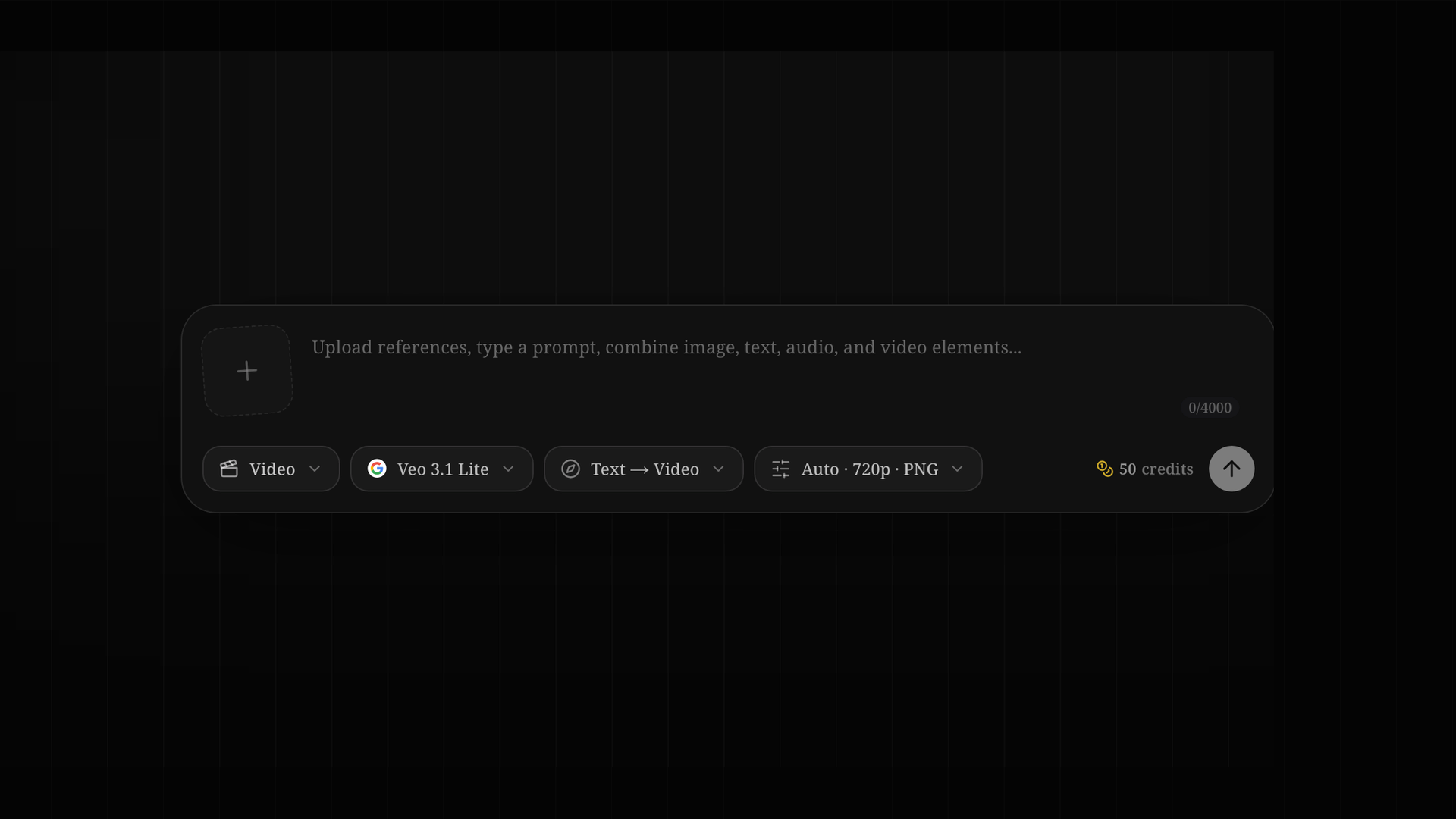
Create a video
- Open Visuals.
- Choose Video in the composer. Some composer settings are remembered locally, so confirm the mode, model, ratio, and resolution.
- Choose a model.
- Choose a Reference mode.
- Add the exact number of images required by that mode.
- Write a non-empty motion prompt, up to 4,000 characters.
- In Format, choose Auto, 16:9, or 9:16 and choose 720p, 1080p, or 4K.
- Check the credit number beside Generate, then submit.
- Follow the Generating card in History. Download the completed video promptly because generated video resources are periodically cleared.
The current interface does not provide duration, frame-rate, seed, negative-prompt, output-format, audio, shot-list, extend-video, or in-browser editing controls.
Choose the correct Reference mode
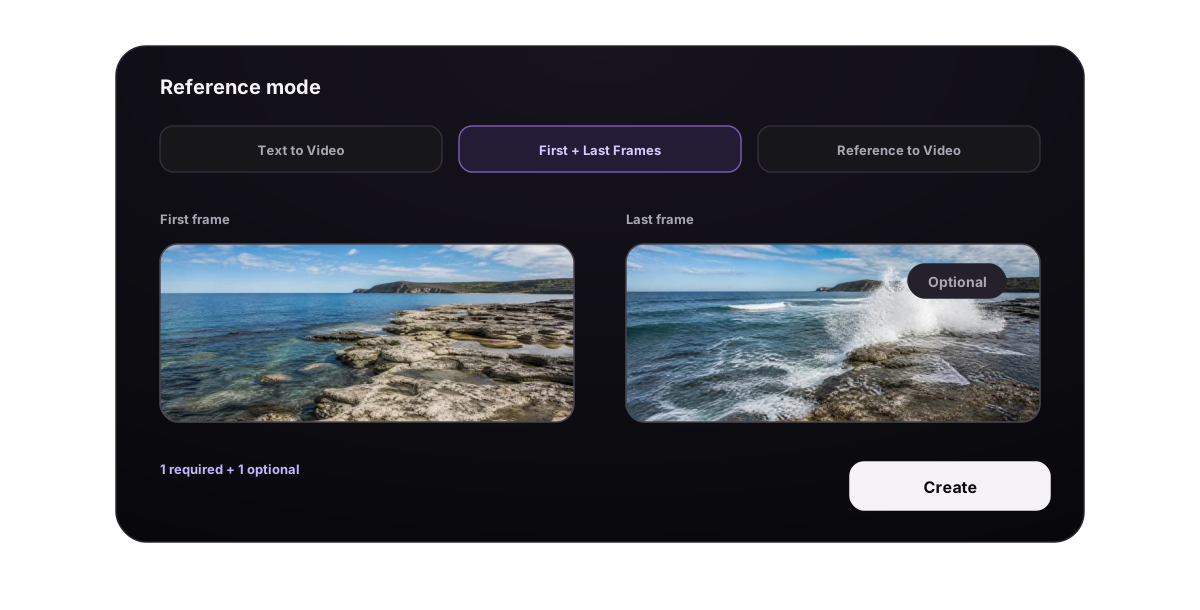
| Reference mode | Models | Required input | Use it when |
|---|---|---|---|
| Text → Video | Veo 3.1 Lite, Fast, Quality | Prompt only; 0 images | The scene can be invented without a fixed source image |
| First & Last Frames → Video | Veo 3.1 Lite, Fast, Quality | First frame required; last frame optional; 1–2 images total | You want to animate one artwork or direct a transition toward a second composition |
| Reference → Video | Veo 3.1 Fast only | 1–3 reference images | Several images should be supplied as visual context without treating them as ordered first/last frames |
In First & Last Frames, add the first frame before the last. Removing the first frame also removes the last because a standalone ending frame is not a valid request. In Reference → Video, the images are references, not an editable timeline.
Switching to a mode or model with a lower reference limit automatically removes images beyond the new maximum. Recheck the thumbnail strip after every switch.
Models, format, and credits
The three current video models share the same prompt limit and visible format options. The verified differences are their credit tables and whether Reference → Video is available.
| Model | 720p | 1080p | 4K | Reference → Video |
|---|---|---|---|---|
| Veo 3.1 Lite | 50 | 100 | 400 | No |
| Veo 3.1 Fast | 100 | 150 | 800 | Yes, 1–3 images |
| Veo 3.1 Quality | 500 | 600 | 1000 | No |
All three currently expose:
- Aspect ratio: Auto, 16:9, and 9:16.
- Resolution: 720p, 1080p, and 4K.
- Prompt: up to 4,000 characters.
The names Lite, Fast, and Quality do not by themselves create a documented promise about generation time, clip duration, audio, or a particular visual result. Compare the visible options and credit estimate rather than inferring controls that are not present.
Prepare reference images
- Accepted types: JPEG, PNG, GIF, and WebP.
- Maximum size: 30 MB per image.
- References are temporary task inputs and do not persist in the composer after a refresh.
- A video file cannot be uploaded as a reference.
Uploads are handled individually. If one file fails, other valid files can remain. Confirm that every intended thumbnail is visible before generating.
For first and last frames, choose images with compatible subject scale, viewpoint, and lighting when you want a smooth transition. A large jump between unrelated compositions gives the model a harder motion problem.
Write a motion prompt
For video, describe change over time rather than only describing a beautiful still image. A useful prompt answers six questions:
- Subject: what is visible?
- Subject motion: what does the subject do?
- Camera: is it static, panning, tracking, orbiting, pushing in, or pulling back?
- Environment motion: what happens in rain, smoke, fabric, water, traffic, light, or the background?
- Timing: does the movement begin gently, accelerate, pause, or settle?
- Ending: what should be visible in the final moment?
Text-to-video example
A lone drummer performs beneath an overpass at night. The camera slowly pushes forward while rain falls through warm streetlight. Reflections ripple on the ground, the drummer's coat moves in the wind, and the shot settles into a medium close-up.
First-frame example
The singer takes a slow breath and turns toward the window. Hair and curtains move lightly in the breeze while the camera makes a gentle clockwise orbit and settles without a sudden cut.
First-and-last-frame example
Begin with subtle breathing and drifting hair, then orbit slowly to the right as the background lights stretch into soft trails. Approach the supplied final frame gradually and settle into its composition.
When frames already define appearance, focus the prompt on motion, camera, timing, and transition. Avoid stacking several incompatible camera moves into the same request. Start with one clear action, inspect the result, and change one variable at a time.
Understand processing and History
After references finish uploading and the task is accepted, a Generating card appears at the top of History. The Generate button becomes available again, which allows parallel submissions. Each submission is a separate task and cost, so do not duplicate a task only because the first one is still processing.
History refreshes while pending or processing jobs exist. The visible terminal states are completed, failed, and canceled.
A completed video card can:
- play or pause in the card;
- open a full-screen player with browser playback controls;
- expand, collapse, and copy the prompt;
- download the video;
- add or edit a private note of up to 1,000 characters;
- favorite or unfavorite it;
- move it to another Visual Workspace;
- move it to Trash.
History can search prompt and note text, filter by Images, Videos, Favorites, or recent time range, and load older results. Generated videos carry a retention notice without a promised number of days. Download any result you need to keep.
Moving a Visuals video to Trash is a soft delete. The confirmation gives a 7-day restore window, and restoration is available from Library → Trash → Videos.
Handle failures accurately
A failed card shows a simplified error and, when applicable, a credit-refund message. The product marks a task as failed and refunds it when the generation service reports failure, returns no usable video, or does not finish within the allowed time. There is no one-click Retry or Regenerate action on the main card.
To recover:
- Expand and copy the old prompt.
- Check the model, format, and required reference count.
- Re-add reference images if the page was refreshed.
- Simplify conflicting motion or replace an invalid source image.
- Submit a new task.
| Message or symptom | What to do |
|---|---|
| Text → Video does not accept references | Remove every image or switch Reference mode |
| First & Last Frames needs references | Add a first frame; add no more than one last frame |
| Reference → Video is unavailable | Choose Veo 3.1 Fast or use another Reference mode |
| A source file is rejected | Use JPEG, PNG, GIF, or WebP under 30 MB |
| Motion is unstable | Reduce subjects, use one main camera move, and make source composition clearer |
| The ending jumps | Use more compatible first/last viewpoints and describe a gradual settling transition |
| Generate is unavailable | Add a prompt and satisfy the exact reference requirement |
| Credits are insufficient | Add credits, then submit again |
For a music-led composition with songs, scene images, and timed lyrics, continue with Music Video Types, Music, Images & Lyrics.
