Create Page Inputs & Settings
The Create page has the creator on the left and song results on the right. Start at the top, choose a model and mode, complete the visible fields, check the credit cost, then choose Create.
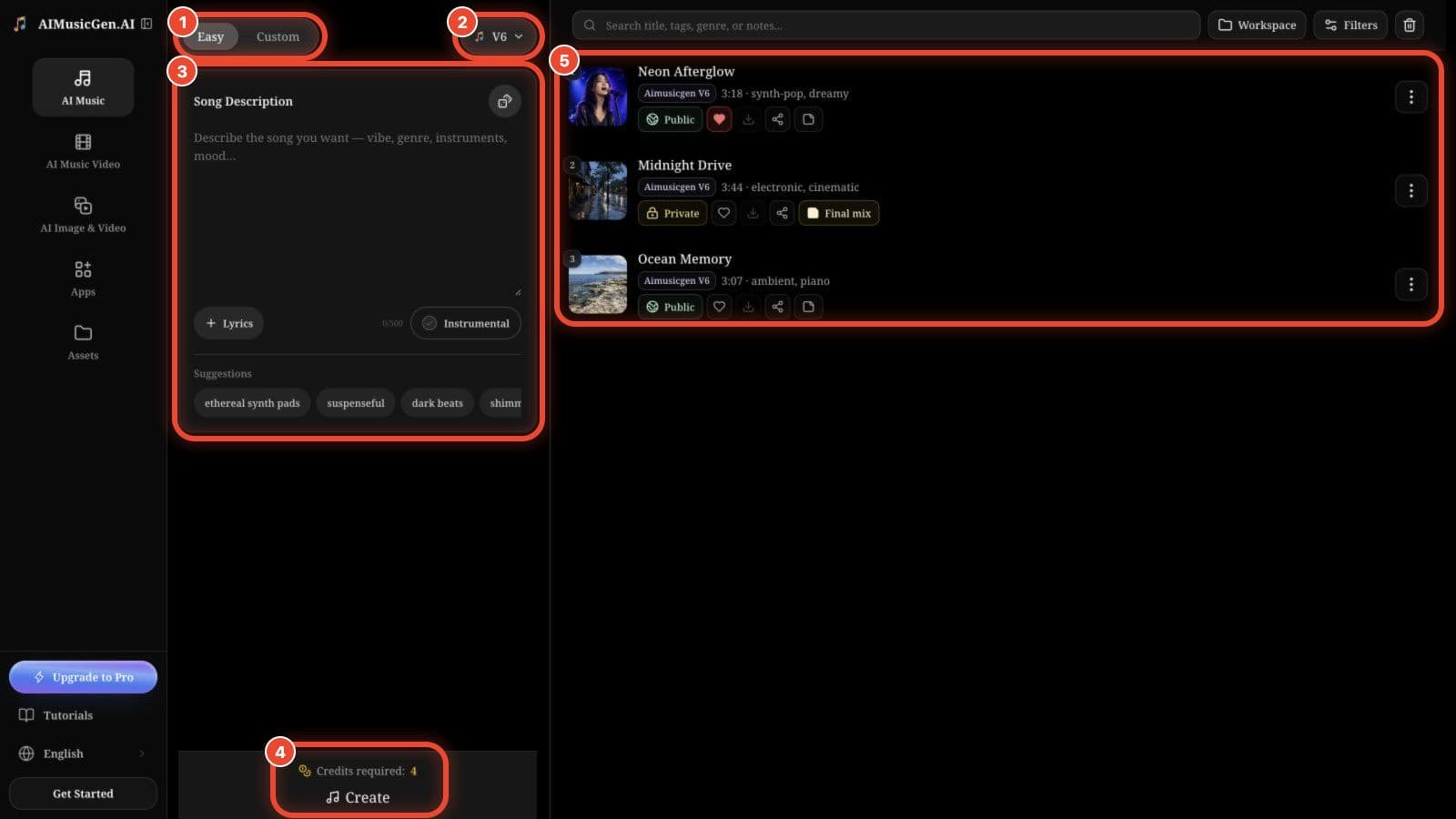
1. Choose a music model
Open the model button at the top of the creator. Each card shows the current version, a short description, availability, and generation cost.
| Model family | Best starting point | Main behavior |
|---|---|---|
| AIMusicGen V2–V7 | General song creation and the widest set of song actions | Easy or Custom creation; current versions also support compatible Audio and Reference paths |
| MiniMax Music 3.0 | A song with your own lyrics and a chosen length | Custom lyrics are required; duration is 1–300 seconds; Instrumental and Reference are unavailable |
| ElevenLabs Music V2 | One full prompt or a song planned section by section | Duration is 3–600 seconds; Sections can control text, length, styles, and context for each part |
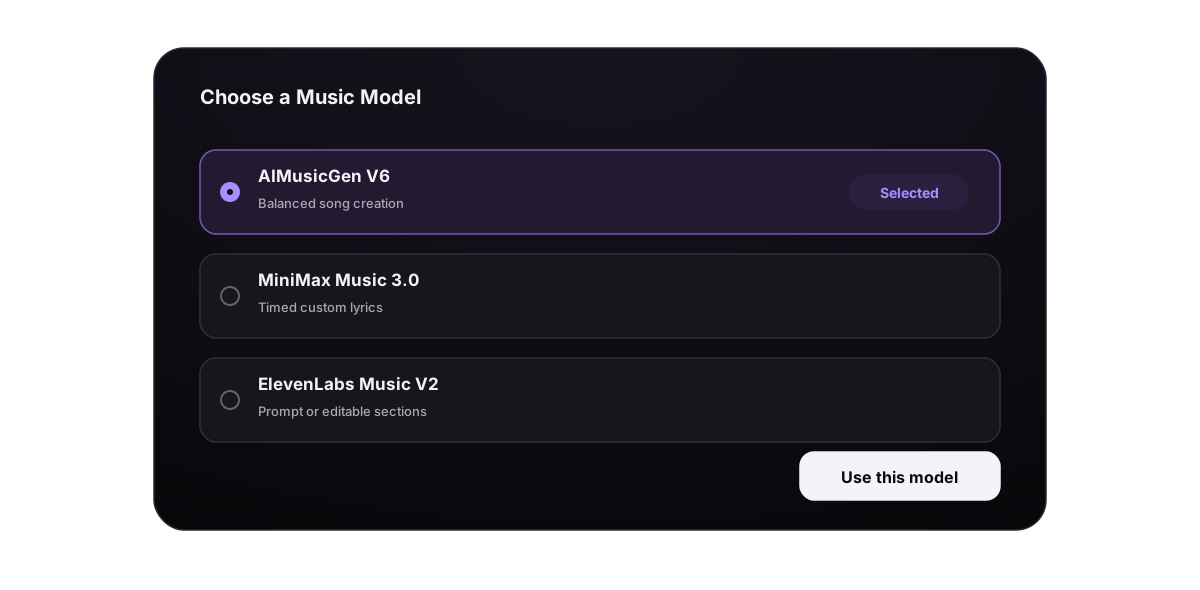
AIMusicGen song generation costs 4 credits and returns two versions. MiniMax uses 1 credit for each requested second. ElevenLabs uses 10 credits for each started minute, with a 10-credit minimum. Always use the live Credits required value as the final price because model availability and pricing can change.
Changing the model can change field limits and available controls. Recheck the visible form after every switch. For help choosing, see Choose a Music Model.
2. Choose Easy or Custom
Easy
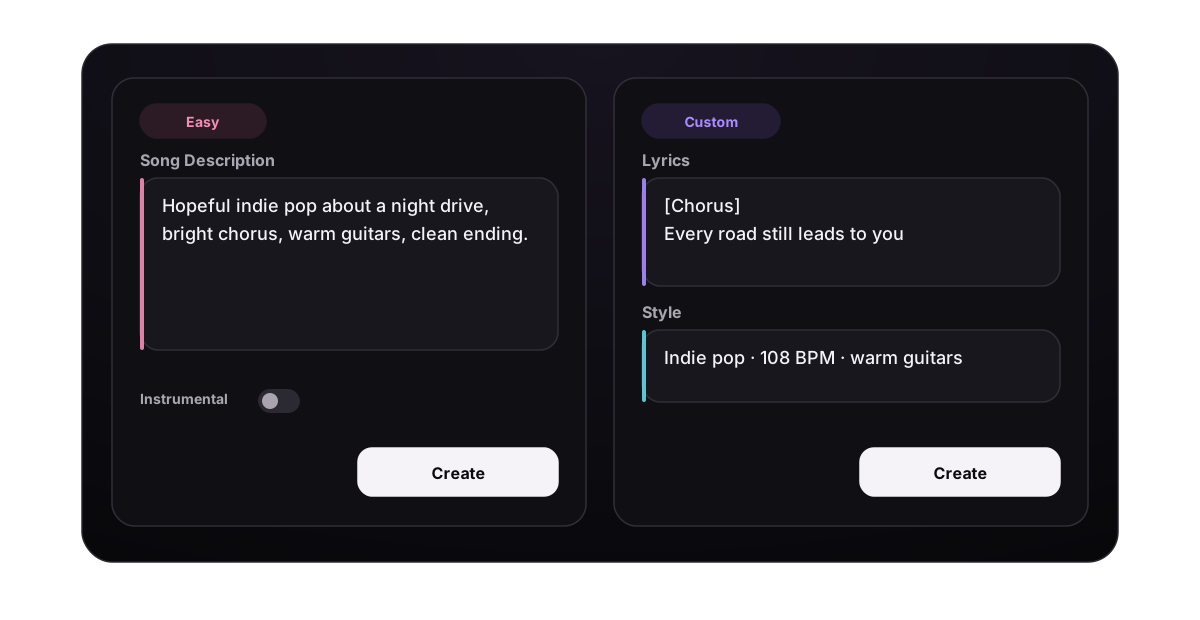
Use Easy when one description is enough.
- Song Description accepts up to 500 characters.
- The dice loads a complete example.
- A suggestion replaces the current description, so copy any text you want to keep first.
- Instrumental asks for music without vocals.
- Lyrics carries the current idea into Custom so you can add or edit exact words.
Custom
Use Custom when you need exact Lyrics, Style, Title, visibility, vocal preference, saved snippets, Audio, Reference, or model-specific duration and section settings.
3. Complete Lyrics and Style
In Lyrics, type your own words or use Generate Lyrics. When text already exists, use Optimize to improve it. Basic and Advanced versions can be edited before Use this lyrics applies them. Save reusable text in Saved Lyrics.
In Style, describe genre, mood, tempo, instruments, voice, arrangement, and production. Use Quick styles or + More for tags, Enhance to expand a short idea, and Advanced options → Exclude styles for sounds you do not want. Save a useful prompt in Saved Style.
Both editors show the active character limit and can be resized. More guidance:
Example: put one idea into the correct fields
Suppose you want a late-night R&B song with exact chorus words.
In Easy, the whole request can stay in Song Description:
Late-night alternative R&B about calling someone after a long separation, 76 BPM, soft electronic drums, warm sub bass and muted guitar, intimate male vocal, restrained verse opening into a wider hopeful chorus, spacious mix.
In Custom, separate the exact words from the sound:
Lyrics
[Verse - close and restrained]
The room is quiet, half past two
I trace the words I never sent to you

[Chorus - wider harmonies]
If I call, will you stay on the line?
Meet me where the city loses time
Style
Late-night alternative R&B, 76 BPM laid-back pocket, soft electronic drums, warm sub bass, muted guitar, intimate male lead, restrained verse, wider chorus with close harmonies, spacious delay and low warm reverb.
Exclude styles
shouted vocals, rock guitars, bright dance drop, orchestral strings
Title
Stay on the Line
Leave Instrumental off because the request includes vocals. This separation gives each field one job: Lyrics says what is sung, Style says how it sounds, and Exclude styles names only unwanted elements.
Model-specific input examples
- MiniMax Music 3.0: enter the complete lyrics in Lyrics, add a Style such as
warm acoustic soul, brushed drums, intimate female vocal, then choose a duration such as 90 seconds. - ElevenLabs Prompt: write one complete request such as
Three-minute cinematic synth-pop song, restrained opening, driving second verse, large final chorus, female lead, clean ending, then choose the total duration. - ElevenLabs Sections: create separate parts such as a 12-second sparse Intro, a 30-second Verse with close vocals, and a 24-second Chorus with full drums and stacked harmonies. Use each section’s Text, Styles, Avoid, and Context fields only for that part.
4. Add a source when needed
- Audio lets you upload a file, save it without generating, or start a compatible Cover, Extend, Add Instruments, or Add Vocals action. See Upload Audio & Choose an Action.
- Reference lets you reuse a saved song or voice identity. It is shown only when the active model and action support it. See Song & Voice References.
When you open a source action, the form changes to the fields required by that action. If a field disappears, it is no longer part of the request.
5. Check the remaining settings
- Vocal Gender: Female or Male is an overall preference. Click the selected option again to clear it.
- Visibility: Public can be shared. Private requires an eligible plan and can also be changed after generation.
- Title: names the result; the limit follows the active model.
- Duration: appears for MiniMax and ElevenLabs.
- ElevenLabs Prompt / Sections: Prompt uses one full instruction. Sections lets you add, reorder, duplicate, or delete up to 30 parts. Each section is 3–120 seconds, and the full song must remain within 3–600 seconds. A section can include text, Styles, Avoid, and Context.
6. Check credits and create
The footer shows Credits required. Create stays disabled until every visible required field is valid.
Before clicking Create, confirm:
- the active model and mode;
- Lyrics or Instrumental;
- Style and Exclude styles;
- any Audio or Reference source;
- duration, visibility, vocal preference, and title;
- the displayed credit cost.
After submission, new rows appear in the results panel. AIMusicGen returns two rows for a normal song request; MiniMax and ElevenLabs return one. Processing rows update automatically, so do not submit the same request again just because the result is not immediate.
7. Review the result
Play the whole song, including its ending. A completed row can be renamed, favorited, downloaded, shared, moved between collections, or given a private note. Open More actions for compatible editing tools such as Extend, Cover, Edit song section, Add Instruments, Add Vocals, or input reuse.
If the result is close, change one part of the prompt and create a new version. If only one area is wrong, use a local editing action instead of rebuilding the whole song. See Best Practices for a repeatable review loop.
