Edit Song Lyrics
Editing lyrics creates a new version. It never rewrites the audio file of the existing song.
There are two useful ways to do this: reload the saved words when several parts need changes, or replace one short part when the rest of the song already works.
Choose full rewrite or local replacement
| Goal | Use | What changes |
|---|---|---|
| Rewrite several verses, reorder sections, or change the overall feel | Reuse lyrics & style | Generates a complete new song from the edited form |
| Make a new version of an Easy song description | Reuse description | Generates a complete new song from the edited description |
| Correct one phrase, verse, or short transition | Edit → Edit song section | Regenerates one selected time range |
| Continue after a chosen point or replace the ending | Remix → Extend | Keeps the earlier source and creates a continuation |
| Keep the original song but change its style | Remix → Cover | Creates a new version based on the original audio |
Use Reuse when several parts or the whole song should change. Use Edit song section when you can point to one short part that is wrong.
Rewrite the full lyric with Reuse
- Find a completed song in Create, a Workspace, an Album, or Songs.
- Open More actions.
- For a Custom song, select Reuse lyrics & style. For an Easy song, select Reuse description.
- Confirm that the creator has restored the expected Lyrics or Song Description, Style, Title, model, and other saved settings.
- Edit the text, review the model and credit total, and click Create.
The source remains in place. The new task appears separately, which lets you compare versions before moving anything to Trash.
Keep the first edit simple
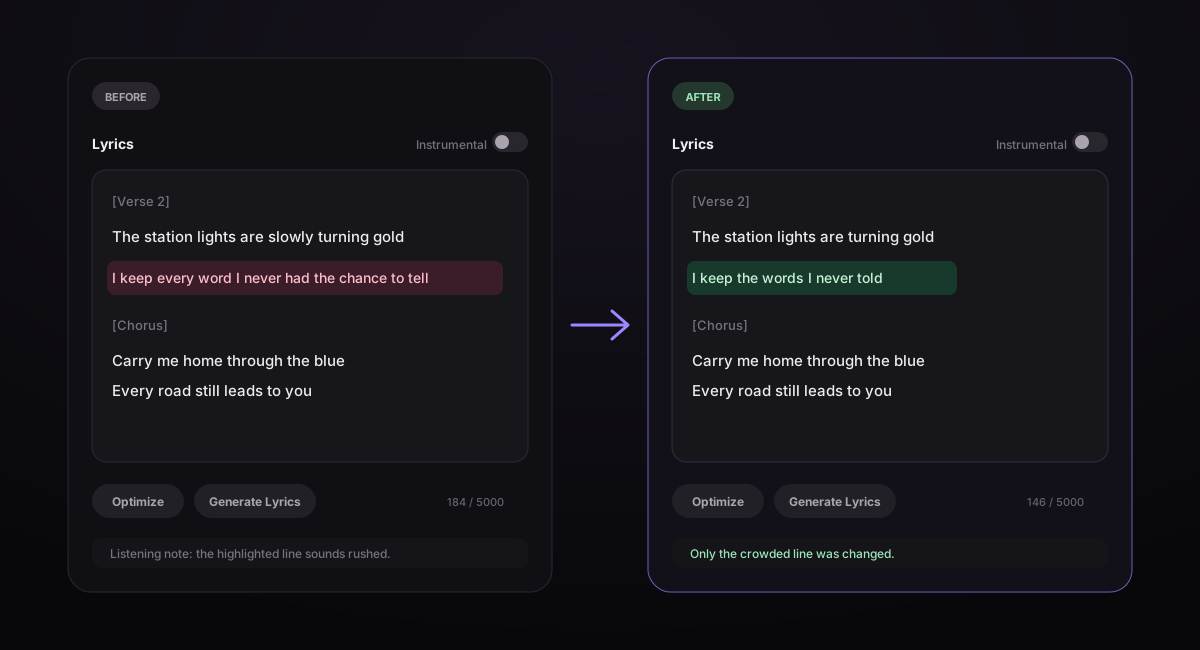
Keep the same section order when you want a lyrical correction without a major structural change. Repeat the complete chorus wherever it should be sung, and keep section labels on their own lines.
[Verse 2]
The station lights are turning gold
I keep the words I never told

[Pre-Chorus]
One more train is passing through

[Chorus]
Carry me home through the blue
Every road still leads to you
Put the music style, instruments, and singing feel in Style. Keep Lyrics focused on the words and section labels.
Change one variable at a time
If the first song is close, decide what the new version is testing:
- Words only: keep Style and model unchanged.
- Singing only: keep the lyric text and change one description of the singer in Style.
- Structure: edit section order and repeated material, but avoid also changing genre and model.
- A completely different style: use Cover or make a clearly different Reuse version.
If you change the lyrics, model, style, speed, instruments, and singer at the same time, you will not know which change caused the new result.
Three simple editing examples
| Problem | First change to try | Keep the same |
|---|---|---|
| One word is wrong | Change only that word | Style and model |
| One line sounds rushed | Remove a few words | Section order and Style |
| Only the second chorus should change | Rewrite the second Chorus in the full lyric | All other sections |
For example, change I am running through the endless city lights to I run through the city lights. The shorter line gives the singer more room without changing the rest of the song.
Use writing tools before creating
- Generate Lyrics can provide a new draft when you need a different concept or structure.
- Optimize can suggest another version of selected writing, but read it before using it.
- Saved Lyrics snippets let you keep a useful draft or recurring structure.
- Saved Style snippets let you compare lyric changes without rebuilding the musical prompt.
These tools prepare text; they do not alter an existing audio file. Review Lyrics Writing, Tags & Saved Snippets for complete examples and tagging guidance.
Correct one part with Edit song section
When only one short part is wrong:
- Open the completed song's More actions menu.
- Select Edit → Edit song section.
- Mark a range between 6 and 60 seconds that also stays within half of the source duration.
- Put only the new local words in Replacement lyrics.
- Put the entire final lyric, including all unchanged sections, in Full lyrics after replacement.
- Add a Style that fits the surrounding song and create the result.
Do not paste the entire song into Replacement lyrics. The detailed field-by-field workflow is in Replace a Song Section.
Review the new version
Listen from the beginning instead of jumping directly to the changed line. Check:
- whether every intended section appears in the correct order;
- whether repeated choruses use the correct words;
- pronunciation and phrasing around edited lines;
- whether the singer, speed, and instruments still fit the goal;
- whether the replaced part joins naturally on both sides;
- whether the final section resolves instead of cutting off.
Keep the most useful source and version until you finish comparing. Use Title changes such as “Blue Road — shorter chorus” to make the purpose of each variation recognizable.
Fix common lyric-editing problems
| Problem | Likely cause | What to change |
|---|---|---|
| Old words still appear | Old lines remain in the full lyric | Remove the old text and check the final section order |
| Chorus is missing on its second appearance | The chorus was referenced but not written again | Repeat the full chorus text in that position |
| The whole arrangement changed | Too many Style or model changes were made with the lyric edit | Return to the original Style and test the words alone |
| One small correction keeps producing unrelated songs | Full reuse is too broad for the goal | Use a narrow Edit song section range |
| New line sounds rushed | Too many syllables were added for the available phrase | Shorten the line or select a longer musical range |
| Edit sounds abrupt | The selected range cuts through a word, held note, or drum hit | Move the start and end to calmer points between lines or beats |
If you need to add music after the current ending, continue with Extend & Reuse Songs.
