Replace a Song Section
Use Edit song section when one short part of a completed song is wrong but the rest should stay the same. It creates a new song and does not overwrite the original.
Before you begin
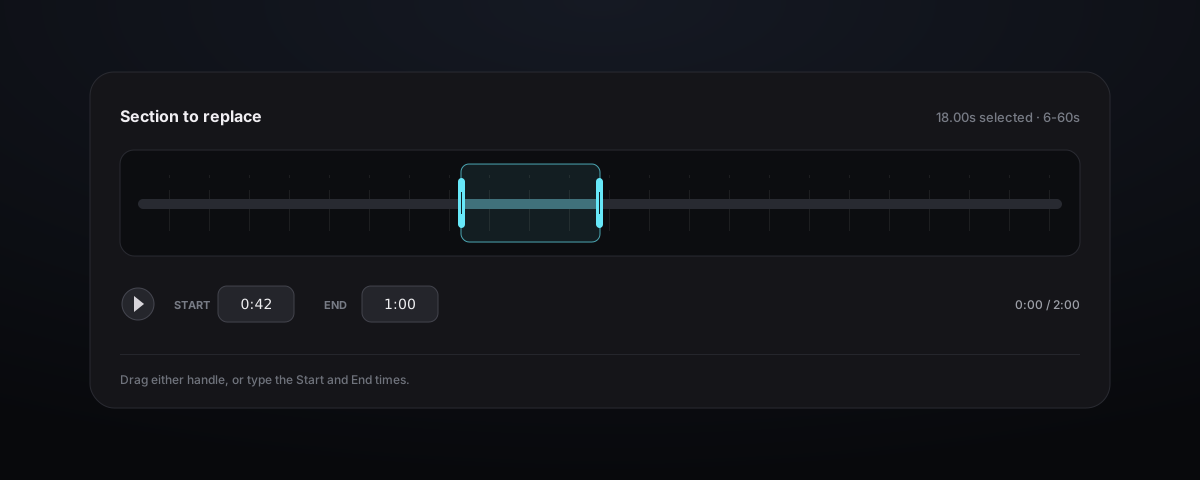
Start with a completed song that can play and has an active Edit → Edit song section menu item. The selected part must follow all three rules:
- at least 10 seconds;
- no more than 60 seconds;
- no more than 50% of the source song.
For a 40-second source, the largest range is 20 seconds. For a 3-minute source, the largest range is 60 seconds. Songs shorter than 20 seconds cannot provide a valid range.
If most of the song needs to change, use Edit Song Lyrics with Reuse lyrics & style or create a Cover instead.
Replace the section
- Find the source song and open More actions.
- Select Edit → Edit song section.
- Play the source and drag the two handles under Section to replace.
- In Replacement lyrics, enter only what should happen inside that range.
- In Full lyrics after replacement, keep the entire final lyric in order and insert the replacement in the correct place.
- In Style, describe how this part should sound. Use Exclude styles when you need to remove an unwanted sound.
- Enter a Title, review the displayed credits, and click Create.
The Create button stays disabled until the range and required fields are valid.
Choose clean boundaries
Listen for one complete lyric line, group of beats, or short section. Put each handle at a natural break instead of the middle of a word, held note, or strong drum hit.
Leave a little room on both sides when the new part needs time to join the old music. Keep the selection as short as the edit allows so more of the original song stays unchanged.
| Boundary choice | Likely result |
|---|---|
| Starts just before the singer comes in | Gives the new line room to begin naturally |
| Cuts through a held note | Makes the join easier to hear |
| Ends after a drum ring or fading sound | Lets the sound finish before the old song returns |
| Covers several unrelated sections | May change more of the song than you wanted |
Fill the three text areas correctly
| Field | Put this here | Do not put this here |
|---|---|---|
| Replacement lyrics | Only the new words or local content for the selected range | The whole song |
| Full lyrics after replacement | Every section in final order, including the new text and all unchanged repetitions | Only the edited verse, or old and new versions together |
| Style | How the new part should sound and connect to the next part | A completely different idea for the whole song |
Worked example: replace Verse 2
Suppose the source order is Verse 1 → Chorus → Verse 2 → Chorus → Outro. Select the Verse 2 audio range.
Replacement lyrics contains only:
[Verse 2]
The streetlights bloom along the rain
I hear your name between the trains
Full lyrics after replacement contains Verse 1, the first complete Chorus, the new Verse 2, the second complete Chorus, and the Outro. Delete the old Verse 2 rather than leaving both versions in the field.
For Style, preserve the surroundings while naming the local change:
same soft singer and indie-pop instruments,
quieter drums in Verse 2, then a smooth rise into the chorus
Replace words with an instrumental moment
The selected range can also become a musical break. Put a short structural cue in Replacement lyrics, such as:
[Instrumental Break]
Then use Style to name the instrument and say how the music should return. Keep the request short enough for the selected time; ten seconds can hold a quick drum break, but not a long guitar solo.
More examples to try
| Problem | Replacement lyrics | Helpful Style direction |
|---|---|---|
| A name is pronounced incorrectly | Rewrite the same line with simpler spelling | Keep the same singer and instruments |
| Verse 2 has too many words | Shorten only the crowded lines | Quiet verse, smooth return to the chorus |
| The pause before the chorus is too empty | [Short Instrumental Break] | Short drum and guitar rise into the chorus |
Review the generated result
The replacement appears as a separate processing row and the source stays unchanged. When it completes, listen from several seconds before the first boundary to several seconds after the second boundary.
Check:
- the exact words and their pronunciation;
- whether the beat stays steady at both joins;
- whether the singer and room sound still feel similar;
- whether the volume and number of instruments match the nearby sections;
- whether repeated lyrics outside the range remained in the intended order;
- whether the replacement solves the original problem without introducing a new one.
If the edit is useful but the join is easy to hear, change only one thing in the next test: move a handle to a calmer point, or make Style closer to the surrounding music.
Fix common problems
| Problem | What to try |
|---|---|
| Edit song section is disabled | Try a completed song that plays normally and shows this menu item as available |
| Range cannot be selected | Keep it between 10 and 60 seconds and within half of the source duration |
| Create remains disabled | Complete Replacement lyrics, Full lyrics after replacement, Style, and Title |
| Old lyric is still sung | Remove the old line from the full final lyric and narrow the source range |
| New lyric is rushed | Reduce syllables or give the phrase a longer valid range |
| Join has a click or sudden volume change | Move the handles away from strong beats and held sounds |
| Too much of the song changes | Use a smaller range and a local Style that matches the source |
To continue beyond a point instead of returning to the original song after the selected range, use Extend & Reuse Songs.
