Quickstart: Create Your First Song
This guide takes you from a simple idea to a playable song. You will use the default beginner settings, so you can finish once before deciding whether you need different modes or models.
By the end, you will have two song versions to compare, plus a clear next step for improving the one you prefer.
1. Open the music creator
Go to the AI Music Generator. You can look around while signed out; when you select Create, AIMusicGen.AI asks you to sign in if needed.
The creator is on the left and your song list is on the right. On a smaller screen, use the Create and Songs tabs to move between them.
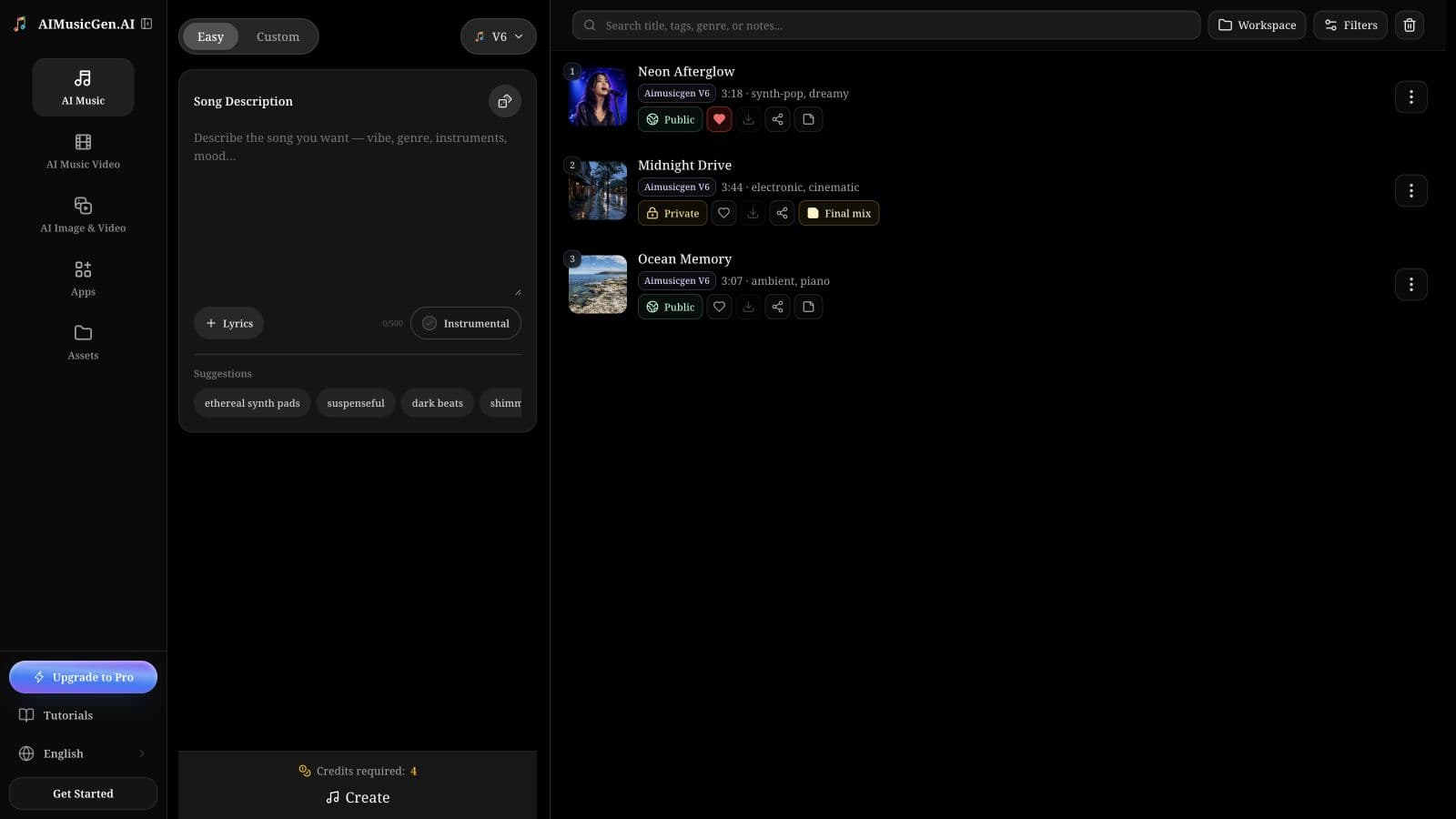
2. Keep the beginner settings
At the top of the creator:
- Keep Easy selected. Easy turns one description into the lyrics, arrangement, and music for you.
- Keep the default V7 model. It is the simplest general starting point and normally returns two versions from one request.
You can compare other choices later. For the first result, changing fewer settings makes it easier to understand what your description produced.
3. Describe the song you want
In Song Description, write one or two sentences that answer these questions:
| Include | Example |
|---|---|
| What kind of music is it? | Bright summer pop |
| How should it feel? | Carefree and hopeful |
| Which sounds should lead? | Acoustic guitar and light drums |
| What should the voice or structure do? | Warm male voice and a catchy chorus |
Put together, the description can be:
Bright summer pop with acoustic guitar, light drums, a catchy chorus, and a warm male voice. Carefree and hopeful, with a clean ending.
If you do not have an idea yet, select the dice for a complete example or select one of the suggestions below the description. You can edit the result before creating.
4. Choose vocals or instrumental music
Leave Instrumental off when you want singing. Turn it on when you want music without a lead vocal.
You do not need to write lyrics in Easy mode. If the exact words matter, select Lyrics to move your idea into Custom mode, then add or generate the lyrics there. For this first song, staying in Easy is the shortest path.
5. Check the cost and create once
Read Credits required above the button. With the default V7 model, one new-song request currently costs 4 Credits and normally creates two alternatives.
Select Create once. A second click starts a separate request and can use Credits again.
If you were signed out, complete the sign-in prompt and return to the creator. Your description stays available so you can submit it after signing in.
6. Wait for the songs to finish
Two new rows normally appear in the song list with Generating status. You do not need to refresh the page or keep selecting Create. The list checks for updates automatically.
| What you see | What it means | What to do |
|---|---|---|
| Generating, with no Play button yet | The request was accepted and the first playable audio is still being made | Keep working or return later |
| The title, cover, and Play button appear while Generating remains | Preview audio is ready, but the full song is still being processed | Listen to the preview while you wait |
| The Generating badge disappears | The full song has finished generating | Listen to the complete song and use its available actions |
| Failed and an error message | The song could not be completed | Read the message before trying again |
You can leave the page while the songs are generating. They remain in your account and appear again when you return.
7. Listen, compare, and keep one
After generation completes, play both versions from beginning to end. Favorite the stronger one so it is easy to find, and rename it if the generated title is not useful.
Each result is a separate song. You can share, download, organize, or delete them independently. Open More actions on the version you want to continue from when you are ready to reuse its description, create a Cover, Extend it, replace a section, or add instruments or vocals.
For your next attempt, change only one important detail—such as the energy, main instrument, vocal style, or chorus. A small change gives you a useful comparison instead of two unrelated songs.
If Create is unavailable
Check the message near the form, then confirm that:
- Song Description is not empty.
- The selected model is available.
- Your account has enough Credits.
- Another request is not still being submitted.
If the task starts but later fails, do not repeatedly submit the same input. Read How Credits & Tasks Work to understand the status and refund flow.
Common questions
Do I need my own lyrics?
No. Easy mode can create the lyrics and song structure from your description. Use Custom when you need specific words.
Why did I receive two songs?
AIMusicGen V2–V7 normally create two alternatives from one new-song request. They are separate songs, so actions on one do not change the other.
Which model should I use next?
Stay with V7 unless you have a specific reason to change. The music model guide explains the inputs, duration limits, result count, and cost of each option in plain language.
Next steps
- Bring your own lyrics or audio: Choose a Creation Mode
- Improve the description: Song Prompt Writing Guide
- Understand every creator control: Create Page Inputs & Settings
- Fix a recurring problem: Common Issues & Fixes
