Vocal Remover & Stem Separation
Use AI Voice Remover to break one finished mix into parts you can audition and download. Choose a quick four-track split, a focused vocal/instrumental pair, or a fuller set of detected stems based on what you plan to do next.
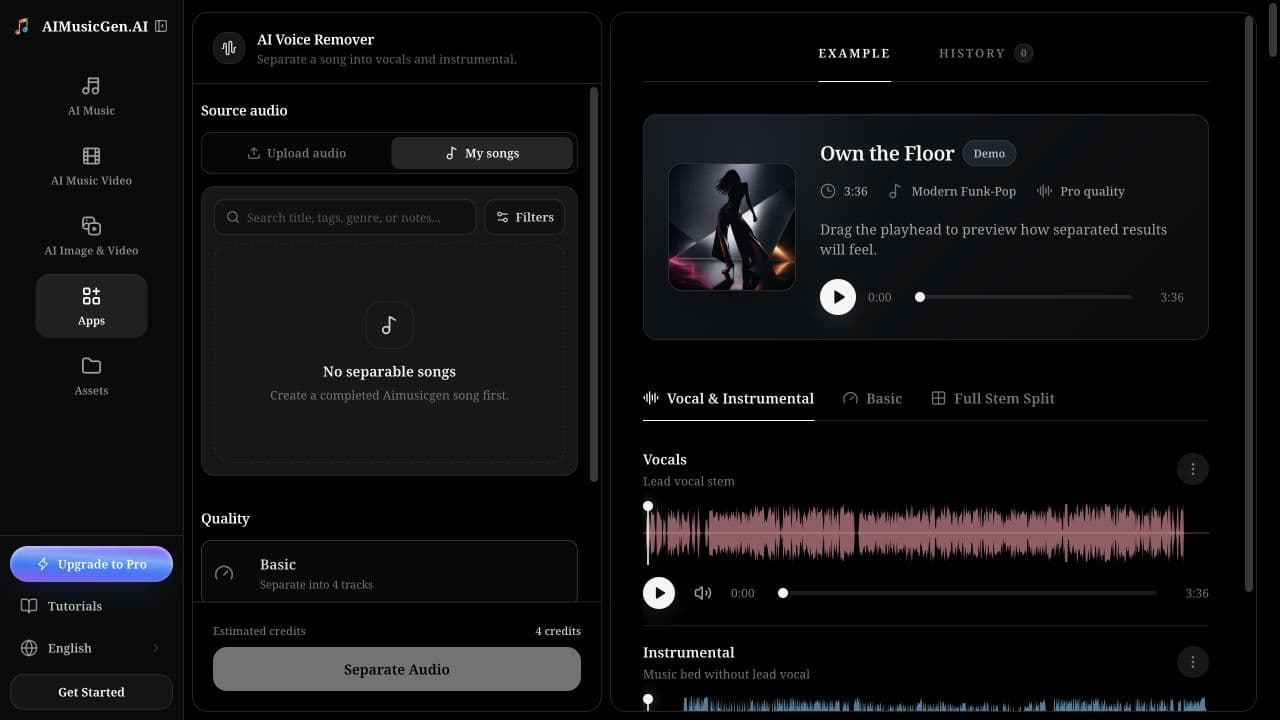
Open the AI Voice Remover directly. From a compatible completed song, you can also open More actions → Edit → Voice Remover or Stem Splitter; that route carries the selected song into the workspace.
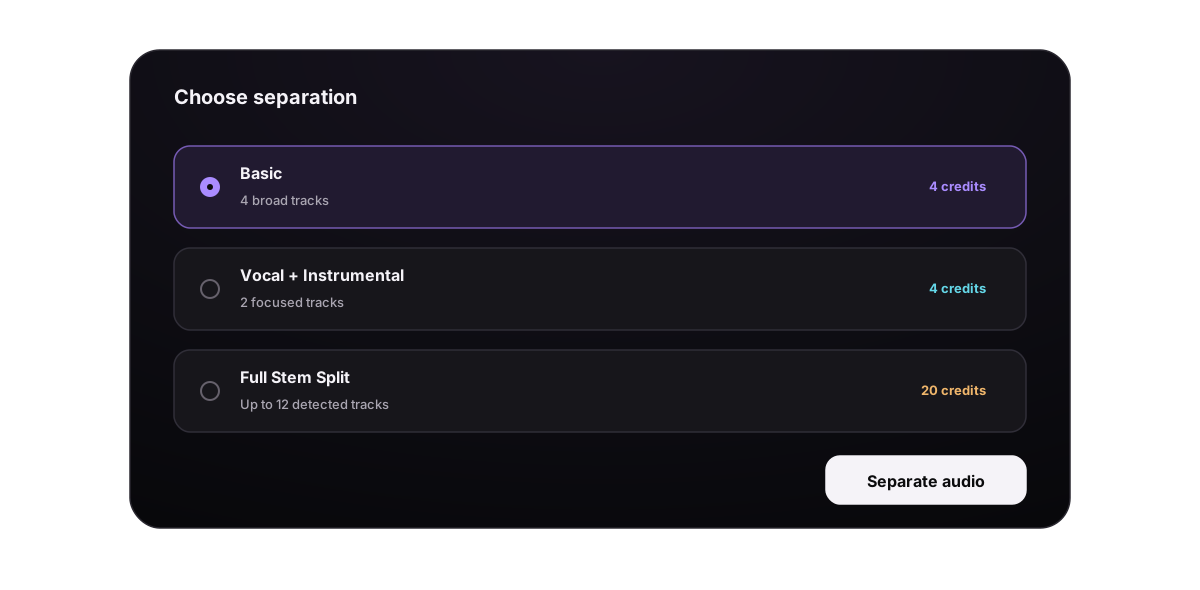
Choose the result before the mode
| You need | Choose | Typical output | Current cost |
|---|---|---|---|
| Vocals, drums, bass, and everything else for a quick remix | Basic | 4 tracks: Vocals, Drums, Bass, Other | 4 credits |
| A backing track or isolated lead vocal | Pro → Vocal & Instrumental | Vocals + Instrumental | 4 credits |
| More control over detected instruments | Pro → Full Stem Split | Up to 12 available stems | 20 credits |
Use the smallest mode that answers the task. A karaoke backing track does not need a full stem split; detailed mixing does not benefit from a two-track result when you need drums and bass separately.
Stem separation estimates parts from a finished mixed song. It cannot recover the original studio recordings. Room echo, doubled vocals, heavy distortion, and instruments with similar sounds can remain partly mixed.
1. Choose a source
In Source audio, select My songs or Upload audio.
Start from My songs
The list shows songs that can potentially be separated. Preview the row and select the exact version. A song must be completed and have playable audio. Some rows remain disabled for the current mode and explain why.
- Basic accepts a broader range of completed playable songs.
- The two Pro choices require a compatible AIMusicGen song that contains the source information needed for separation.
- Voice Changer outputs, vocal-remover outputs, and instrumental-only results are not valid sources for another separation.
If a song arrives through More actions, the workspace tries the requested mode and can fall back to Basic when only Basic is compatible.
Start from Upload audio
Drop one local file into the upload area or click to browse, then preview the accepted source. Uploads currently use Basic four-track separation; the Pro choices are not shown for uploaded files.
The upload accepts the audio formats shown by the interface, including MP3, WAV, M4A, FLAC, WEBM, OGG, and AAC. Keep the file at or below 50 MB and between 3 seconds and 8 minutes.
2. Choose the separation mode
Basic: four broad tracks
Basic separates the source into Vocals, Drums, Bass, and Other. Other can contain guitars, keyboards, strings, effects, and any material not assigned to the first three groups.
Choose Basic for a quick practice mix, beat study, rough remix, or when the source is an uploaded file. It gives useful broad control without promising instrument-by-instrument separation.
Pro: Vocal & Instrumental
This mode returns a Vocals track and an Instrumental track. Use it for karaoke, rehearsal, vocal study, or an edit that only needs the singer and accompaniment separated.
The Instrumental result contains everything except the estimated vocal. Backing vocals, vocal reverb, and instruments that resemble the voice may not separate perfectly.
Pro: Full Stem Split
Full Stem Split can return available parts from this set: Vocals, Backing Vocals, Drums, Bass, Guitar, Keyboard, Strings, Brass, Woodwinds, Percussion, Synth, and FX. Only stems detected and returned for the source appear in the result.
Choose it when you need multiple parts for detailed balancing, muting, arrangement study, AudioMass editing, or later MIDI work. “Up to 12” is not a guarantee that every source contains or produces all 12 labels.
3. Review the cost and submit
- Play the source and confirm it is the correct version.
- Select Basic or Pro. Under Pro, choose Vocal & Instrumental or Full Stem Split.
- Read Estimated credits immediately above the action button.
- Select Separate Audio once.
- The right side switches to Result and shows the source, selected quality, status, and output placeholders.
The action stays disabled when no valid source is selected or the song is incompatible with the current mode. Switching source or quality resets the current result view, so download anything you need first.
When a compatible library song already has a usable completed or active separation, the service can return the existing result instead of starting and charging for a duplicate. The response and visible result are the authority; do not repeatedly click to test for a cache.
Wait for all outputs
The result moves through Starting, Processing, Completed, Cached, or Failed. Basic upload tasks check for updates automatically. Library Pro results also continue updating through the result and history data.
Do not treat one finished stem as proof that the entire group is ready. Wait until the group shows Completed, then inspect every expected output. If a task fails, use Retry only after confirming that the source and mode are still valid. Recorded failures follow the product's normal refund handling.
Review stems at useful checkpoints
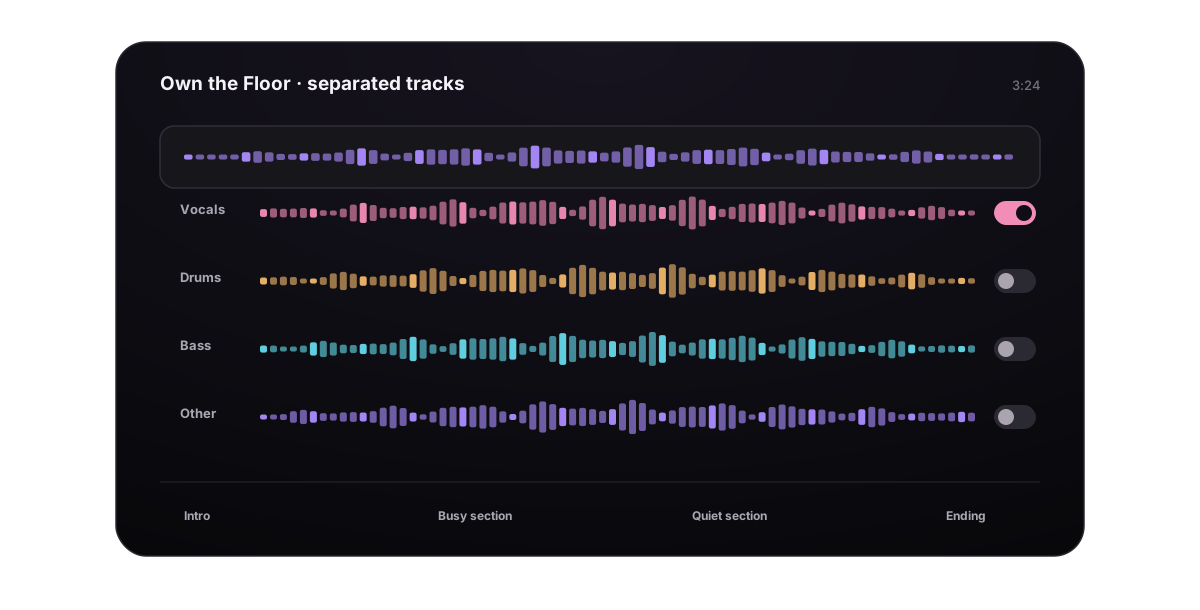
Solo each output and listen at four places:
- Intro: check noise, count-ins, and whether the first drum hit or note is missing.
- Busiest chorus or drop: listen for vocals leaking into other tracks, cymbals in the vocal track, and instruments crossing between tracks.
- Quiet verse or breakdown: check lingering echo, breaths, background sound, and unnatural volume changes.
- Ending: confirm the full ending and final note are not cut off.
Also compare all outputs with the original source. The tracks should stay aligned in time. Playing them together should broadly reconstruct the song, although separation can introduce small changes in tone or background sound.
Download or continue editing
Each completed output row has its own player, seek control, duration, and download button. Download only the stems you need, and keep the original mix until all files have been verified.
Completed Pro results can show Edit Audio, which opens the compatible outputs in AudioMass – Audio Editor. A completed Full Stem Split stores the returned stem list for the editor before opening it. Basic four-track results are downloaded individually from the current result.
Full Stem Split is also the required starting point for compatible MIDI extraction. See Audio Editing, MIDI & Exports before expecting a two-track or Basic result to provide MIDI.
Understand Result and History
- Result shows the task created from the currently selected source and quality.
- History groups saved Pro vocal/instrumental and Full Stem Split results by task, with status, players, downloads, and Edit Audio when available.
- Basic upload/four-track results are task-based current outputs; download important files before replacing the source or leaving the workflow.
- Failed saved vocal/instrumental records can be removed from History without deleting the original song.
Separated outputs are specialized audio assets. They intentionally do not expose every Remix action available to a complete song.
Fix common separation problems
| Problem | What to try |
|---|---|
| No source songs appear | Finish or upload a playable non-instrumental song first |
| A song says “Wait until this song finishes” | Let generation complete, then reopen the tool |
| A row says it cannot be separated | Choose Basic or select a compatible AIMusicGen source for Pro |
| A Voice Changer result is disabled | Return to the original source song; voice-change outputs cannot be separated |
| Pro disappears after choosing Upload audio | This is expected; local uploads currently use Basic four-track separation |
| Upload is rejected | Use a supported format, stay under 50 MB, and keep duration between 3 seconds and 8 minutes |
| Vocal remains in Instrumental | Try a cleaner mix; doubled vocals and reverb are difficult to remove fully |
| Instruments appear in Vocals | Check a less dense section and use Full Stem Split when you need more instrument control |
| Full split returns fewer than 12 stems | Only detected and returned parts appear; not every song contains every category |
| One output looks ready while others are missing | Wait for the group status to complete before downloading |
| Task fails | Read the error, verify the source still plays, and retry once with a compatible mode |
Use only audio you are allowed to upload, separate, edit, and export. Creating stems does not change the ownership or licensing of the source recording.
Next, open the completed parts in Audio Editing, MIDI & Exports, or change an existing performance with Voice Changer.
