Generate Sound Effects
Sound Effects turns a written description into a short audio file. Use it for one-shot impacts, Foley, interfaces, transitions, ambience, loops, game prototypes, podcast details, or musical building blocks.
The most reliable workflow is simple: describe one clear sound, generate a short result, listen in context, and change one instruction at a time.
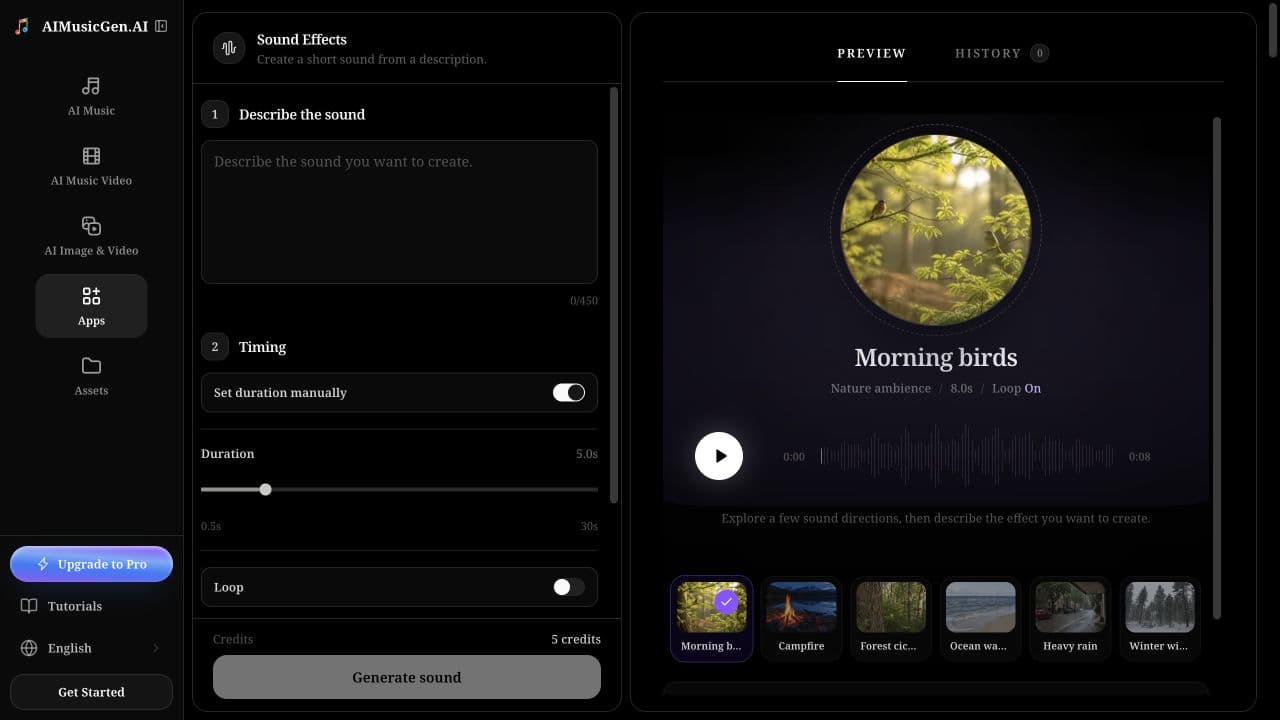
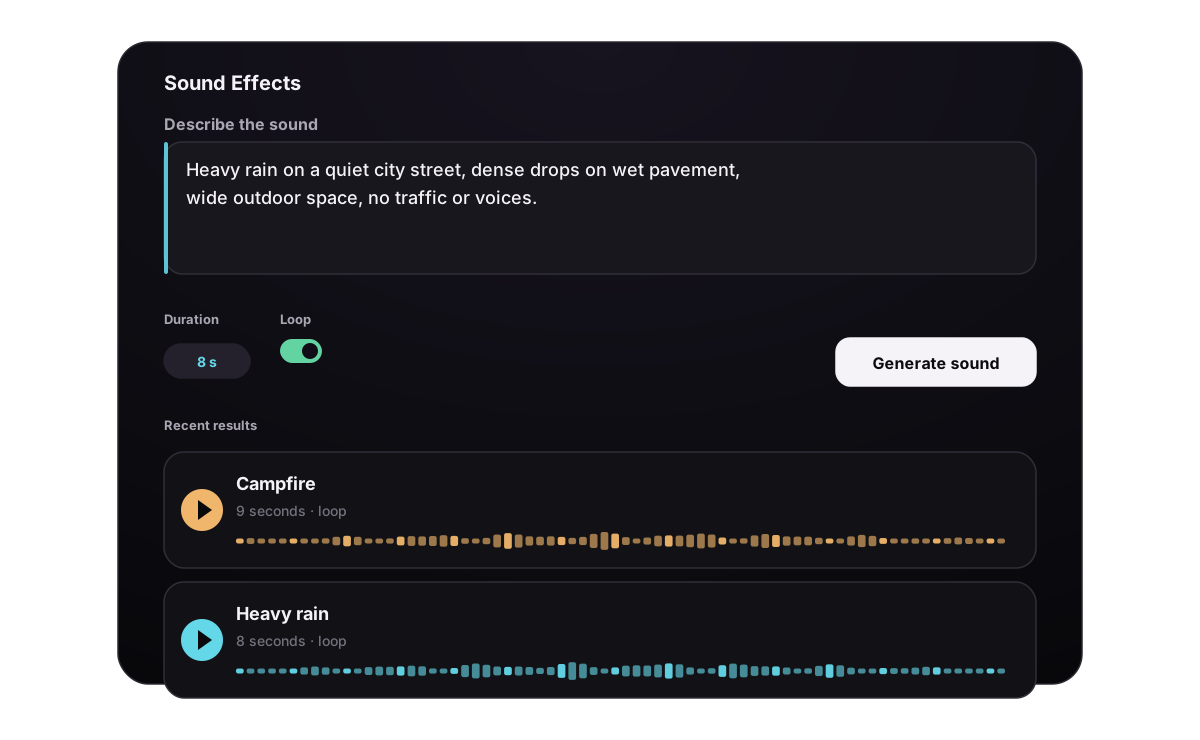
Create your first sound effect
- Open Sound Effects.
- In Describe the sound, write what should be heard.
- Keep Manual duration on when the sound must fit a known time range, or turn it off to use automatic duration.
- Turn on Loop only when the result should repeat continuously.
- Open More options if you need to change Prompt influence or Download format.
- Check the character counter, active settings, and displayed credits.
- Select Generate sound.
- Play the result from beginning to end before downloading it.
The prompt can contain up to 450 characters. One generation currently requires 5 credits within the available duration range; the live value above the button is the final price.
Write the sound in useful layers
A good prompt describes what happens in the order a sound designer would listen for it:
source + action + material + space + distance + intensity + time behavior
You do not need every part. Keep the details that change the sound and remove decorative language that does not tell the system what to produce.
Start with the source and action
Weak:
Door sound.
More useful:
A heavy wooden door closes with a deep impact and a short metal latch rattle.
The second prompt identifies the object, material, action, and two important components of the result.
Add the space and recording perspective
Compare:
Footsteps on gravel.
Slow boots walking on loose gravel in a narrow outdoor alley, recorded close, dry, no voices or music.
Words such as close, distant, dry, wide, indoors, underwater, muffled, and reverberant change where the listener seems to be.
Describe motion and time
Use time words when the effect needs an internal shape:
A fast airy whoosh moving from left to right, rising quickly and ending with a soft low hit.
For a sequence, write events in order with terms such as then, followed by, or after a short pause. If timing must be exact, generate the events separately and assemble them in an audio editor.
Prompt examples by goal
One-shot impact
A thick ceramic mug dropped onto a concrete floor, one sharp crack followed by several small fragments, close and dry, no room ambience.
Use a short manual duration and keep Loop off.
Foley movement
A person in a canvas jacket opens a heavy backpack zipper slowly, close microphone, detailed fabric movement, quiet indoor room.
Name the material and movement speed. “Cloth sound” is too broad to guide a specific result.
Continuous ambience
Quiet nighttime pine forest, light wind moving through branches, sparse insects, one distant owl, stable background bed with no sudden foreground events.
Use a longer duration and test Loop. Stable backgrounds usually hide the repeat boundary better than sharp events.
Interface or product sound
Short premium confirmation tone for a mobile app, soft glassy click with a warm tonal tail, clean, minimal, under one second.
Avoid asking for several notification states in one prompt. Generate success, warning, and error sounds separately so each can keep a clear identity.
Transition
Fast cinematic whoosh passing left to right, bright air at the start, stronger low-frequency sweep near the end, clean stop, no impact.
State whether the transition should end cleanly or land on a hit.
Musical element
Dusty 1990s hip-hop drum loop, 88 BPM, loose swing, dry kick, crisp snare, subtle vinyl texture, no melody.
For a reusable musical loop, include tempo, instrument, rhythmic feel, tonal center when relevant, and the elements that should not appear. Use the music creator instead when you need a complete song structure.
Understand every control
| Control | Available setting | How to choose |
|---|---|---|
| Manual duration | On or off | Turn on for a fixed edit slot; turn off when the event should determine its own ending |
| Duration | 0.5–30 seconds in 0.5-second steps | Keep one-shots short; allow more time for evolving ambience or musical loops |
| Loop | On or off | Use for repeatable ambience, drones, textures, and rhythmic beds—not for a normal one-time event |
| Prompt influence | 0–1; the current default is 0.30 | Raise it when essential details are ignored; lower it when the result is too rigid or you want broader variations |
| Download format | MP3 standard, MP3 high quality, MP3 small file, or Opus high quality | Choose for the next editor, platform, or file-size requirement |
Automatic or manual duration
Use automatic duration when the natural end matters more than an exact timeline slot—for example, a glass breaking or a door closing. Use manual duration for a five-second transition, a ten-second ambience bed, or another known edit length.
Do not force a complex scene into a duration that cannot contain it. If a result feels rushed, increase the duration or split the prompt into separate layers.
When to turn on Loop
Loop asks for an ending that can return to the beginning without an obvious seam. It works best for:
- rain, wind, room tone, crowds, forests, and machinery beds;
- drones, steady textures, and rhythmic patterns;
- backgrounds without a unique event near the start or end.
Keep it off for impacts, doors, footsteps with a fixed count, spoken events, or any sound with a definite ending. After generation, let the file repeat several times and listen specifically across the end-to-start boundary.
How to tune Prompt influence
Start from the default value. If the result misses an essential object, material, or sequence, make the wording clearer first; then raise Prompt influence gradually. If every version sounds constrained or lacks natural variation, lower it slightly.
Prompt influence cannot resolve conflicting instructions. A request for “one dry close impact” and “a huge distant reverberant hall” still needs to be rewritten.
Choose a download format
| Format | Best for | Tradeoff |
|---|---|---|
| MP3 standard | General video, podcast, and preview use | Balanced quality and size |
| MP3 high quality | A compressed file with more headroom for delivery | Larger than standard MP3 |
| MP3 small file | Fast sharing, prototypes, and lightweight previews | Lower fidelity, especially on detailed ambience |
| Opus high quality | Modern playback workflows that support Opus | Confirm compatibility with the next editor or platform |
If you plan to layer, process, or archive the result, choose the highest-quality format supported by the rest of your workflow. Changing the selected format affects the created download; it does not convert an older history item in place.
Review the result and create variations
The result view lets you play or pause, move through the waveform, adjust preview volume, copy the prompt, open the result, and download the audio. History keeps earlier tasks available and can be searched or sorted.
Use a controlled revision loop:
- Listen once for the overall event.
- Listen again for timing, background artifacts, and the ending.
- Copy the prompt from the result.
- Change only one variable: material, distance, room, intensity, speed, or duration.
- Generate and compare the new result with the previous one.
Keep a short note of the prompt and settings for any result you may need to recreate.
Troubleshoot common results
| Problem | What to change |
|---|---|
| The sound is too generic | Add the object, action, material, and recording distance |
| The result contains too many events | Remove secondary actions and generate each layer separately |
| The sequence is in the wrong order | Use explicit order words, or create the events as separate files |
| The effect is rushed or cut off | Increase manual duration or return to automatic duration |
| The ambience has a noticeable loop seam | Remove unique start/end events, use a steadier texture, and regenerate with Loop on |
| The effect sounds like a music bed | Remove genre, melody, harmony, and instrument terms unless they are intentional |
| An important detail is missing | Rewrite that detail more directly, then raise Prompt influence a little |
| The result is too literal or repetitive | Lower Prompt influence slightly and simplify the prompt |
| The download will not open in another app | Choose a more widely supported MP3 format and generate again |
Before publishing, check loudness, clipping, unwanted voices or music, the first and last frame of sound, and how the effect sits beside dialogue or a song.
For more help with prompt structure, see Prompt Structure and Examples. To trim, layer, or export the result with other audio, continue with Audio Editing, MIDI & Exports.
