Song & Voice References
Reference helps a new Custom song keep the overall feel of a saved song or use a voice you have verified. This feature was formerly called Persona.
A Song Reference is built from one of your completed songs. A Voice Reference is built from a voice recording that you verify. Neither replaces the Lyrics, Style, Title, or model for the current song.
Choose the right reference
| Type | Source | What it guides | Best for |
|---|---|---|---|
| Song Reference | An available completed V4, V5, V6, or V7 song | Music style, instruments, mood, and singing feel | Making new songs that sound like part of the same album |
| Voice Reference | A clear voice recording or upload plus a spoken check | How the singer sounds | Using your own verified voice in more than one song |
A Voice Reference and Voice Changer do different jobs. Voice Changer changes the voice in existing audio. A Reference helps a new song use a similar voice in Custom mode.
Select an existing Reference
- Open the song creator and switch to Custom.
- Click Reference near the top of the form.
- Search the saved list and select a ready item.
- Confirm that its card appears in the creator.
- Enter the current Lyrics, Style, and Title, then create normally.
The Reference helps keep a familiar feel. The current form still decides what the new song says and how it should sound. Remove the card when you do not need it.
References work with V4, V5, V6, and V7. They can appear in Custom generation, Cover, and Extend when the page allows them. They do not appear with Upload only, Edit song section, Add Instruments, Add Vocals, MiniMax, or ElevenLabs.
Create a Song Reference
- Open Reference and choose Create Reference.
- Select From Song Assets.
- Search for and choose an available completed song.
- Use the waveform to select the clearest 10–30 seconds that show the song's main features.
- Add a Name and Description. Add Style when it helps explain those features.
- Review the displayed cost and click Create Reference.
The song must be complete and playable. Songs saved with Upload only and some songs made from uploaded audio cannot become a Song Reference. The list shows these songs as unavailable.
Select a part that shows the song clearly
Choose a part where the features you want to keep are easy to hear. A Chorus often includes the full set of instruments and singing. A Verse is useful for a softer singing style. An instrumental part is useful when the instruments and rhythm matter most.
Avoid very short transitions, long silence, broken or overloaded audio, and one-time sound effects that do not represent the whole song.
Describe the feeling you want to keep
Describe what you can hear in the saved song. Do not put the new song's lyrics here:
Name
Neon Skyline Vocal Pop

Description
Bright electronic pop with a close, breathy lead vocal, compact verses,
wide layered choruses, crisp drums, and a bittersweet late-night mood.

Style
electronic pop, breathy vocal, wide chorus, crisp drums
The current Lyrics and Style still affect the result. If you want the new song to feel close to the Reference, do not ask for a completely opposite Style.
Create a Voice Reference
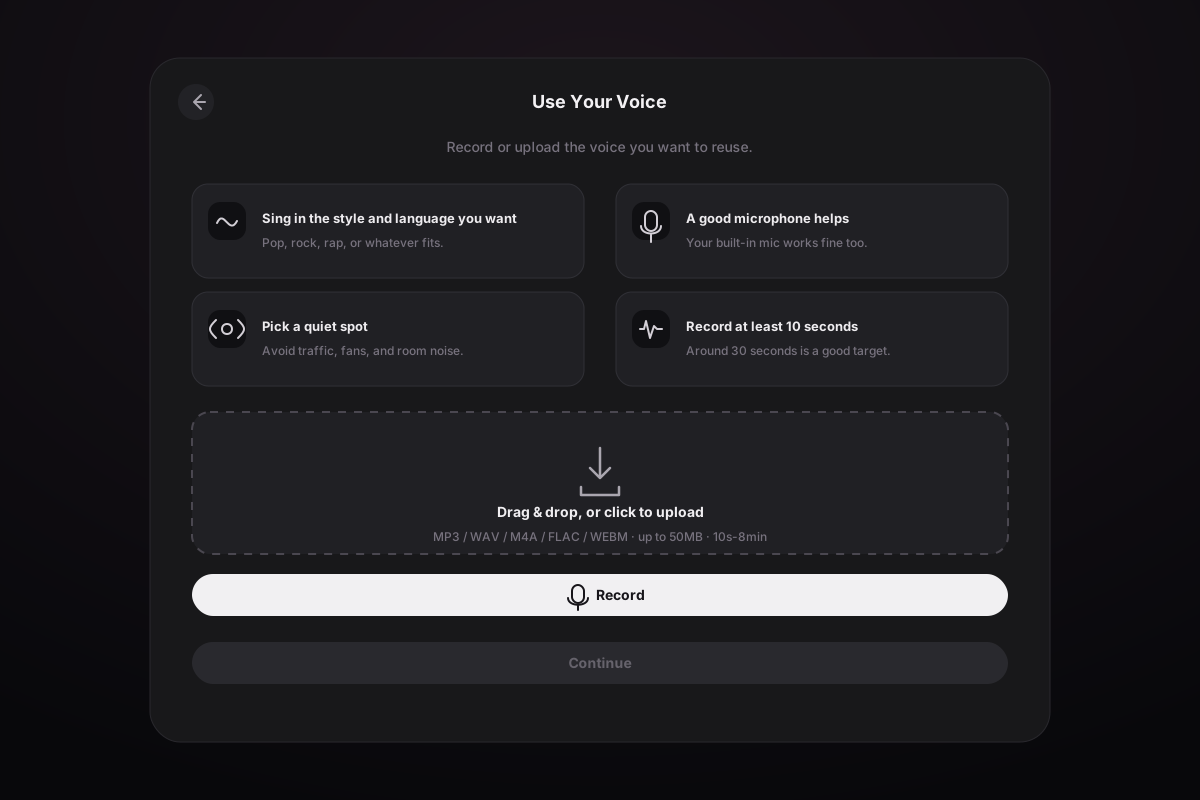
- Open Reference → Create Reference → Use Your Voice.
- Record in the browser or upload a voice file.
- Preview the source and continue to Trim your voice.
- Select the clearest part between 10 seconds and 8 minutes. About 30 seconds is often easier to review the first time.
- Choose the verification phrase language and click Validate Voice.
- Wait for the phrase, then read it clearly in your natural speaking voice. Verification uses live recording; it does not accept an uploaded verification file.
- Add the required Name and Description, plus optional Style, then click Create Voice.
- Wait until the Reference becomes ready before using it.
The source file can be up to 50 MB. Supported phrase languages are English, Chinese, Spanish, French, Portuguese, German, Japanese, Korean, Hindi, and Russian.
Record a useful voice source
- Use one person's voice with no music when possible.
- Sing in the language and style you want the Reference to represent.
- Keep the microphone at about the same distance and do not suddenly get louder.
- Record in a quiet place without an obvious echo.
- Avoid crackling or overloaded sound, strong effects, or people talking over each other.
- Preview the file before trimming and replace it if the wrong microphone was used.
Use only your own voice or a voice you are authorized to use. Verification is a safety step, not permission to imitate another person.
Understand processing and credits
Creating a Song Reference or finishing a Voice Reference currently uses 4 credits. Preparing the sentence for the voice check does not spend those 4 credits. If the final creation fails, the product uses its normal failed-task refund process.
Song and Voice References may take time to finish. An unfinished Voice Reference can stay in the list with Continue creating this voice reference. Reopen it to continue the sentence, voice check, details, or waiting step. Do not create a second one from the same recording just because the first one still says Processing.
If a saved Voice Reference later becomes unavailable, the creator can reopen a revalidation flow before starting the song. Song-generation credits are not taken while a required Reference is still unusable.
Keep references organized
Use a clear Name that identifies the source and its main feature. In Description, write how the music or voice sounds. Do not include private details or promise that every result will sound exactly the same.
Which one should you use?
| Your goal | Better choice |
|---|---|
| Make a new song that feels like the same album | Song Reference |
| Use the same person's voice in a different new song | Voice Reference |
| Change the voice in an existing audio file | Voice Changer |
| Make one style change without saving a Reference | Cover or Reuse |
Before creating a new Reference, search the existing list. A song-source duplicate can return the already created Reference instead of making another one.
Fix common Reference problems
| Problem | What to try |
|---|---|
| Reference is disabled | Switch to Custom and select V4, V5, V6, or V7 |
| A song is disabled in From Song Assets | Try a completed song that plays normally and was not saved with Upload only |
| Voice source cannot continue | Keep it between 10 seconds and 8 minutes and under 50 MB |
| Verification phrase fails | Record the displayed phrase clearly in a quiet room with the same speaker |
| Voice creation fails after verification | Use Try again when offered, or Start over with a cleaner source |
| Reference card disappears after changing action | Switch back to a model and action that show Reference, then select it again |
| Result sounds very different from the reference | Remove Style instructions that oppose the saved song and select a part that shows its main features more clearly |
For broader changes that do not need a saved Reference, use Extend & Reuse Songs. For an existing song that needs a different voice, use Voice Changer.
