Prepare your audio for its next project.

Choose audio specifications that suit your editor, delivery requirements and storage needs. Audio Enhancer brings sample rate, bit depth and lossless formats into one workspace. Source preview and settings are available now; processing and export are coming soon.Choose sample rate, bit depth and format. Processing and export are coming soon.

Match the audio to your project
SAMPLE RATE

Match the audio to your project

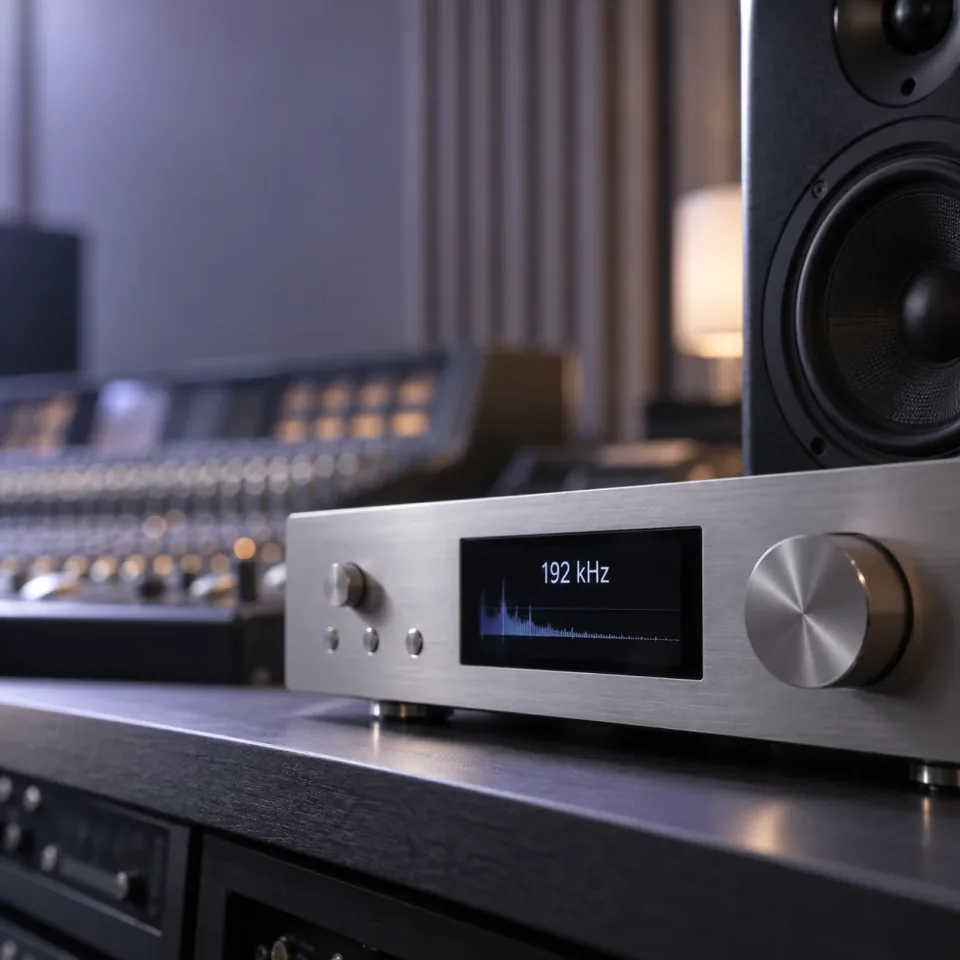
Preparing a recording for a new editing session? Choose a target sample rate from 48 to 192 kHz to match the next project's requirements. Keep the original as your reference when deciding which specifications you need.

Explore Audio Enhancer48–192 kHzProject-ready settings

Choose the precision for your next edit
BIT DEPTH

Choose the precision for your next edit

Set 16-bit or 24-bit PCM for WAV and FLAC, or 32-bit float for compatible WAV workflows. Match the bit depth to the software and delivery format you use, without treating a larger number as a repair for a poor recording.

Explore Audio Enhancer16 / 24-bit PCM32-bit float WAV
Plan a lossless file for editing or storage
WAV & FLAC

Plan a lossless file for editing or storage

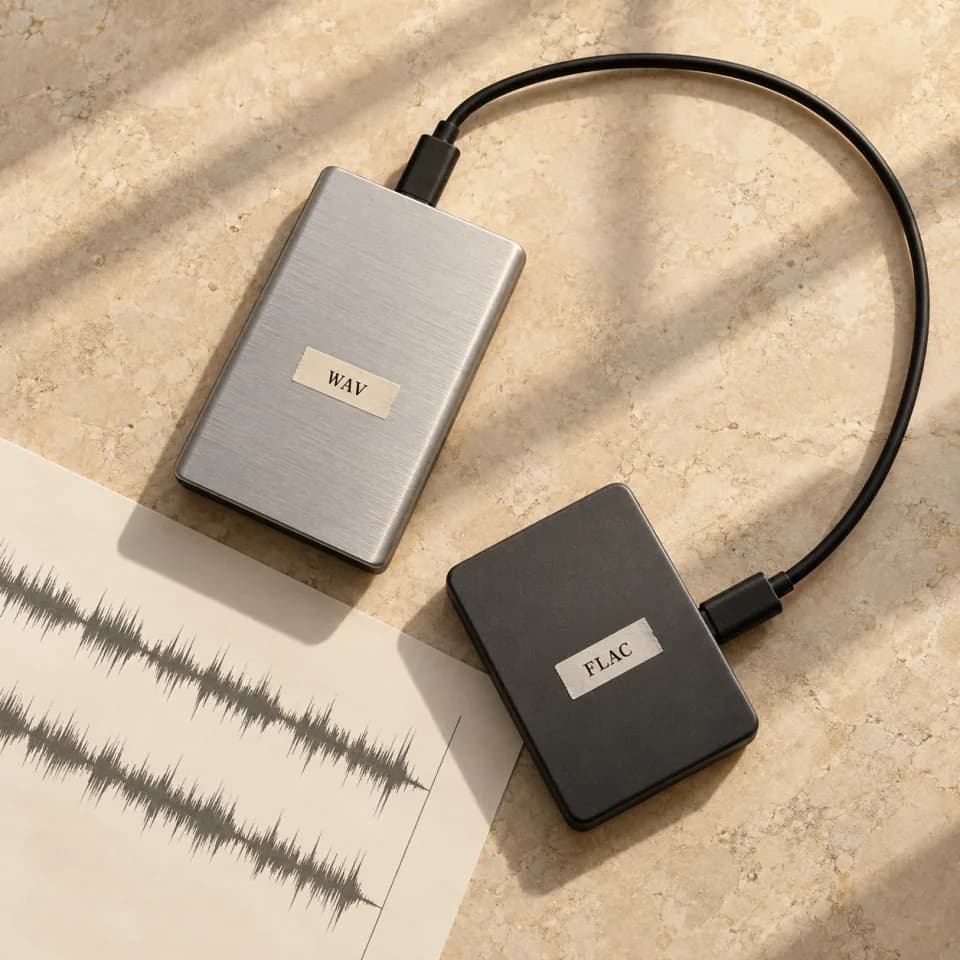
Choose WAV for a broadly compatible editing file or FLAC for lossless compression that saves storage. Both avoid another round of lossy encoding; neither can bring back detail already discarded from an MP3 or other compressed source.

Explore Audio EnhancerWAV for editingFLAC for storage
HOW IT WORKS

How to prepare your audio output

Choose a source, then prepare the output specifications for your workflow.

Explore Audio Enhancer
  1. Add a source

    Upload audio up to 100 MB or choose a song from your library.

  2. Choose output settings

    Select a sample rate, WAV or FLAC, and a compatible bit depth.

  3. Review your choices

    Listen to the original and check your output settings. Processing and downloads are coming soon.

Music Tool

More Ways to Work on Your Song

Create a song, shape its sound, separate vocals, or turn it into a music video. Find the right tool for your next step.

AI Music Extender

Add a verse, bridge, or outro from a point you choose.

AI Music Editor

Replace a song section with new lyrics or musical direction.

AI Song Cover Generator

Reimagine an existing song in a new genre or arrangement.

Send the Song

Share a song with a personal message and a dedicated page.

AI Music Generator

Create an original song from your lyrics and musical ideas.

AI Voice Changer

Explore a different vocal sound for your recording.

Audio Enhancer FAQ

Practical answers about audio quality, output settings and choosing the right format.

Will this remove background noise or echo?

No. This workspace focuses on sample rate, bit depth and output format. It does not currently offer noise reduction, echo removal or voice isolation. If noise is the problem, clean the recording with a dedicated tool before preparing its output specifications.

Can a higher sample rate make a low-quality MP3 sound better?

Not by itself. Increasing the sample rate or saving an MP3 as WAV does not recover detail lost during recording or compression. Start with the best source available and choose settings for your next workflow, rather than expecting larger files to sound better.

Which sample rate should I choose?

Match the requirements of your destination project or editor. The available targets are 48, 88.2, 96, 176.4 and 192 kHz, with 48 kHz selected by default. Choose a higher rate when your workflow calls for it, not simply because it is available.

Should I choose 16-bit, 24-bit or 32-bit float?

Use the bit depth required by your next application. 16-bit PCM is common for playback; 24-bit PCM offers more numerical precision for editing. Choose 32-bit float only for a compatible WAV workflow. Changing bit depth does not recover detail missing from the source.

Is WAV better than FLAC?

Both can preserve audio without lossy compression. WAV is widely supported by editing software, while FLAC usually stores the same audio samples in a smaller file. Here, WAV offers 16-bit, 24-bit and 32-bit float; FLAC offers 16-bit and 24-bit PCM.

Why does choosing FLAC change my 32-bit setting?

The FLAC option in this workspace supports 16-bit and 24-bit PCM. If you switch from a 32-bit float WAV setting to FLAC, the bit depth changes to 24-bit. Keep WAV selected if your next application specifically requires 32-bit float.

Which audio files can I use?

Select a local MP3, WAV, FLAC, OGG, M4A or AAC file up to 100 MB, or choose an available completed song from My songs. Local preview also depends on your browser supporting the file's audio codec.

Can I download enhanced audio now, and will my original change?

Processing and downloads are not available yet. You can select a source, listen to the original and prepare output settings. These actions do not rewrite your local file or create an enhanced version.

Prepare audio for your next step.

Sample rate, bit depth and lossless formats.

Explore Audio Enhancer