01
Lighter files for everyday sharing
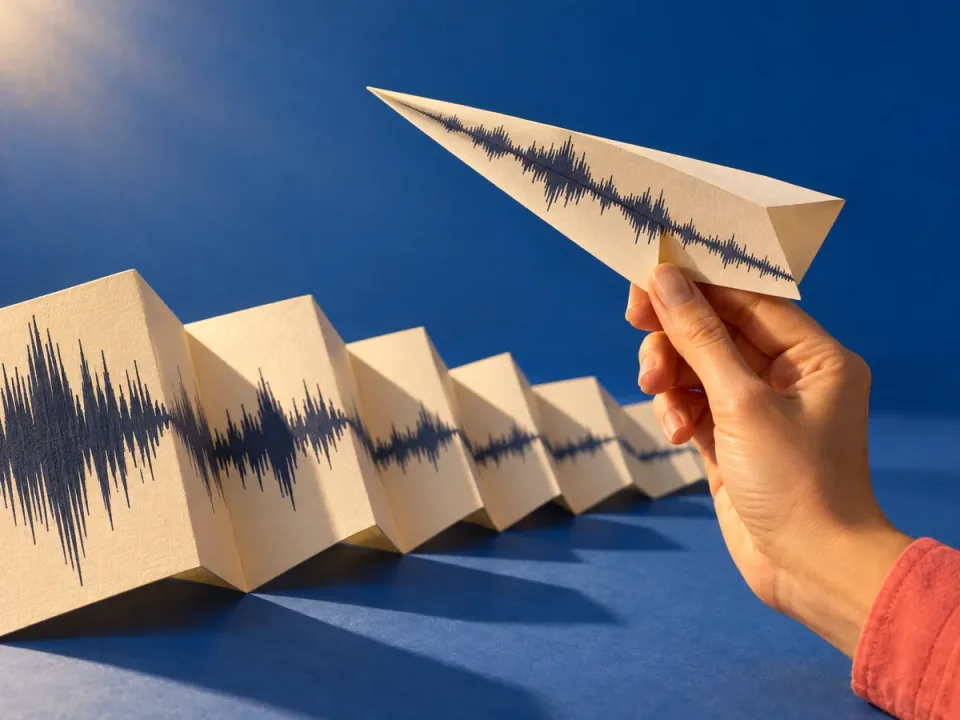
Large WAV recordings can be awkward to send. MP3 and AAC offer smaller listening copies for sharing and playback, with a trade-off between compression and audio detail.
ลองแปลงไฟล์เสียงแปลงไฟล์เสียงฟรีA smaller file to share, a WAV for your editor, or audio your player can open. Compare six output formats and prepare your files in one place. Conversion and downloads are coming soon.Choose from six output formats for your audio. Conversion and downloads are coming soon.
Large WAV recordings can be awkward to send. MP3 and AAC offer smaller listening copies for sharing and playback, with a trade-off between compression and audio detail.
ลองแปลงไฟล์เสียงแปลงไฟล์เสียงฟรี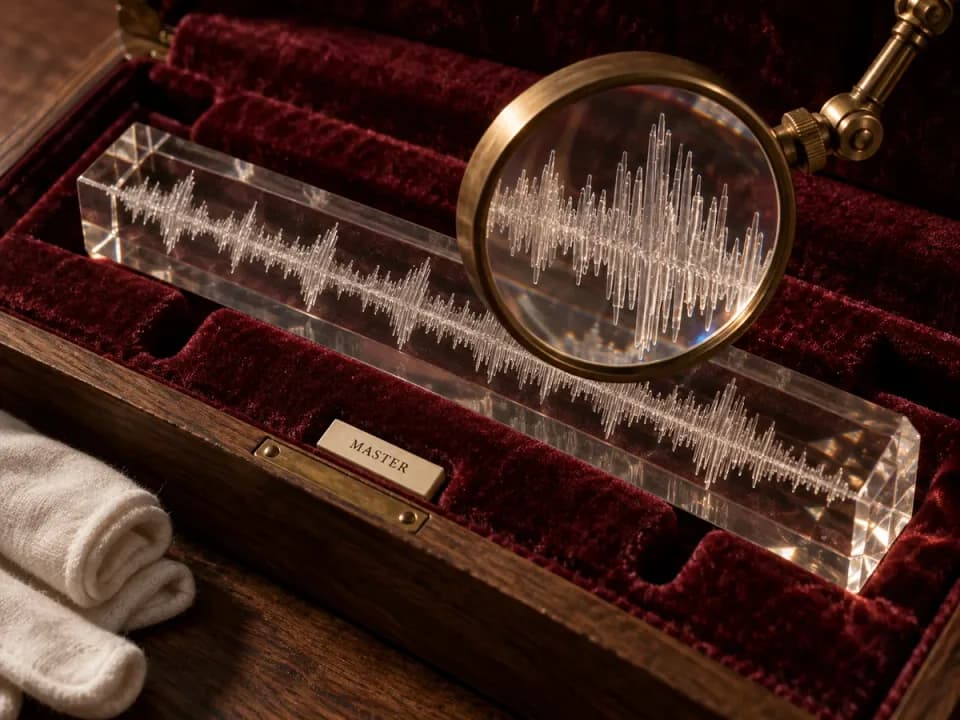
WAV suits editing workflows, while FLAC stores audio with lossless compression. Start with your best source: converting an MP3 to either format cannot restore detail already lost.
ลองแปลงไฟล์เสียงแปลงไฟล์เสียงฟรี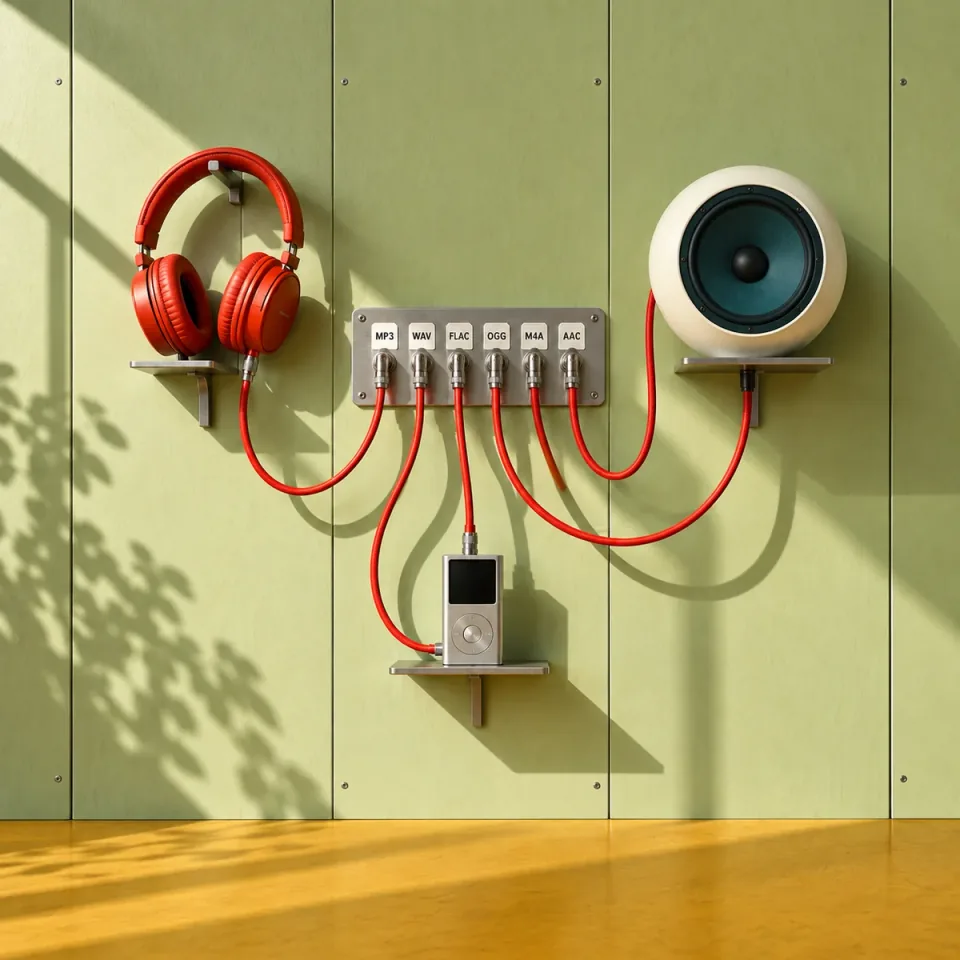
Check the formats your destination accepts, then choose from MP3, WAV, FLAC, OGG, M4A, and AAC. Set one output format for all prepared files or choose a different format for each.
ลองแปลงไฟล์เสียงแปลงไฟล์เสียงฟรีComing soon · Conversion is not available yet.
ลองแปลงไฟล์เสียงChoose a song from My Songs or add local audio. Prepare up to 10 files, with each local file no larger than 100 MB.
Set a default format or choose MP3, WAV, FLAC, OGG, M4A, or AAC for each item in Files.
Once conversion is available, check the resulting audio before using it in your next project.
Create a song, shape its sound, separate vocals, or turn it into a music video. Find the right tool for your next step.
Coming soon · Conversion is not available yet.
The output choices are MP3, WAV, FLAC, OGG, M4A, and AAC. You can add files and choose their formats now, but conversion and downloads are not available yet. Choosing a format prepares the file list; it does not convert the audio.
Choose MP3 for broad playback support and smaller sharing copies. WAV is a common choice for editing. FLAC uses lossless compression and usually takes less space than uncompressed WAV, but check that your destination accepts it. Keep your best original for future edits.
No. WAV and FLAC cannot recover detail removed by MP3 compression. They may meet an editor's format requirements, but they will not make the source clearer. For the best starting point, use the original recording or a lossless source when you have one.
Uncompressed WAV stores more data than MP3, so converting to WAV can increase size without improving the sound. MP3 or AAC is usually more suitable for a small sharing copy. Size also depends on duration and encoding settings; this workspace does not currently offer bitrate controls.
Yes. Add up to 10 files, with a limit of 100 MB per local file. Choose an output for each item or apply one format to the whole list. This prepares your choices only; batch conversion and downloads are not available yet.
The file extension alone does not guarantee compatibility. M4A and OGG are containers, and an app also needs to support the audio codec inside. Check the app's supported formats and codecs. Renaming the extension to .mp3 does not convert the file.
No. Format conversion changes how audio is stored, not which parts of the recording are included. Use Audio Cutter to select and preview shorter clips. Cutter export is also coming soon, so it cannot provide a trimmed download yet.